Discord
Netclaw connects to Discord over the Gateway WebSocket API — outbound connections only, no public URLs needed. You create a Discord bot, give netclaw one token, and it shows up in your server.
Prerequisites
Section titled “Prerequisites”- Netclaw installed and initialized (
netclaw init) - A Discord server where you have the “Manage Server” permission
- Developer Mode enabled in Discord (for copying IDs)
Create a Discord bot
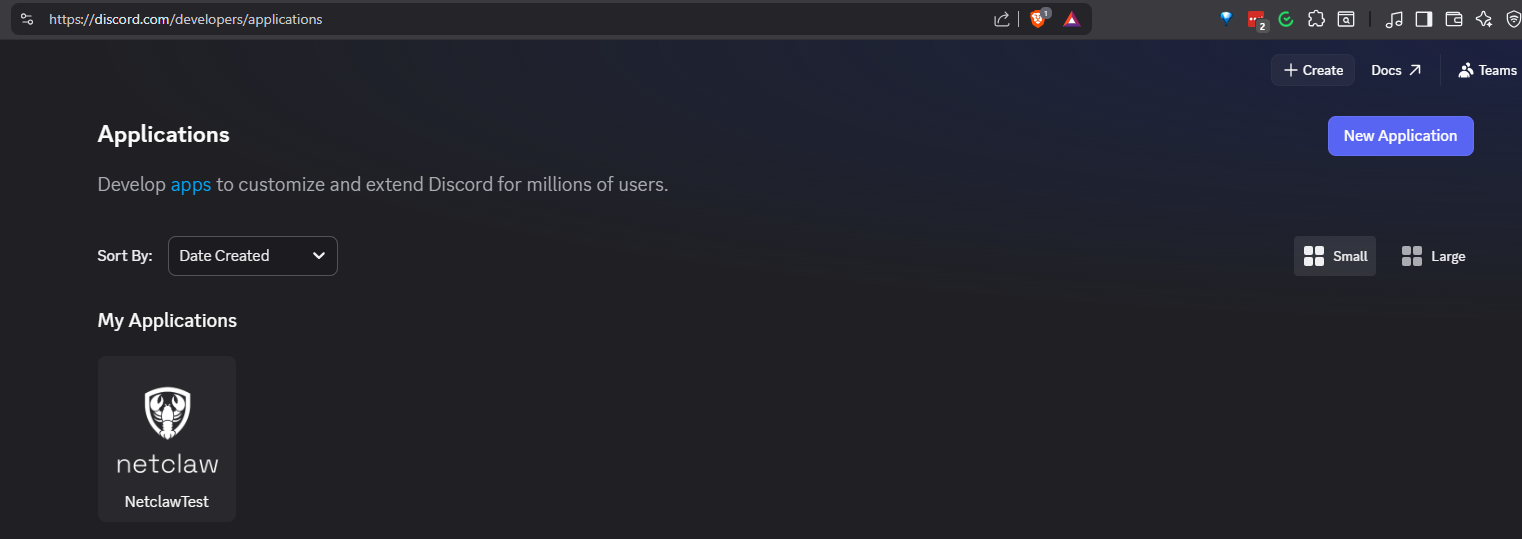
Section titled “Create a Discord bot”Head to discord.com/developers/applications and create a new application.
1. Create the application
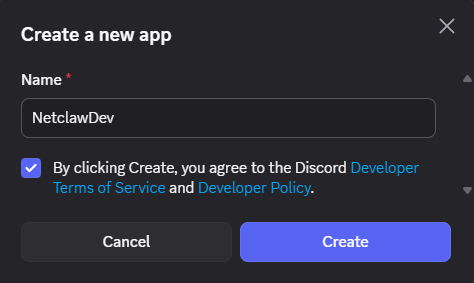
Section titled “1. Create the application”Click New Application, give it a name, and hit Create.
2. Copy the bot token
Section titled “2. Copy the bot token”Go to Bot in the left sidebar. Click Reset Token to generate a bot token and copy it immediately — Discord only shows it once.
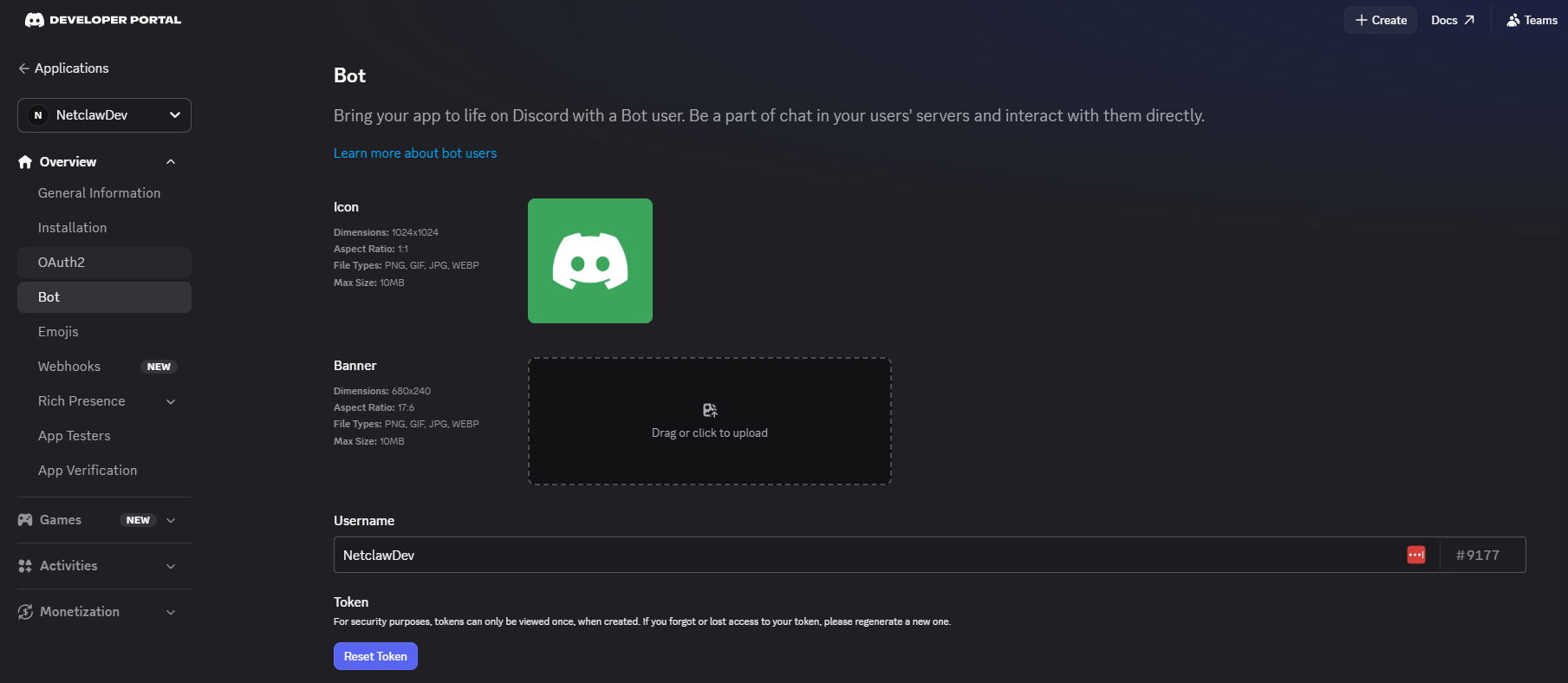
If you lose the token, you can always reset it here, but you’ll need to update your netclaw config with the new value.
3. Enable Message Content Intent
Section titled “3. Enable Message Content Intent”Scroll down on the Bot page to Privileged Gateway Intents and enable Message Content. Without this, netclaw receives message events but can’t read their text.
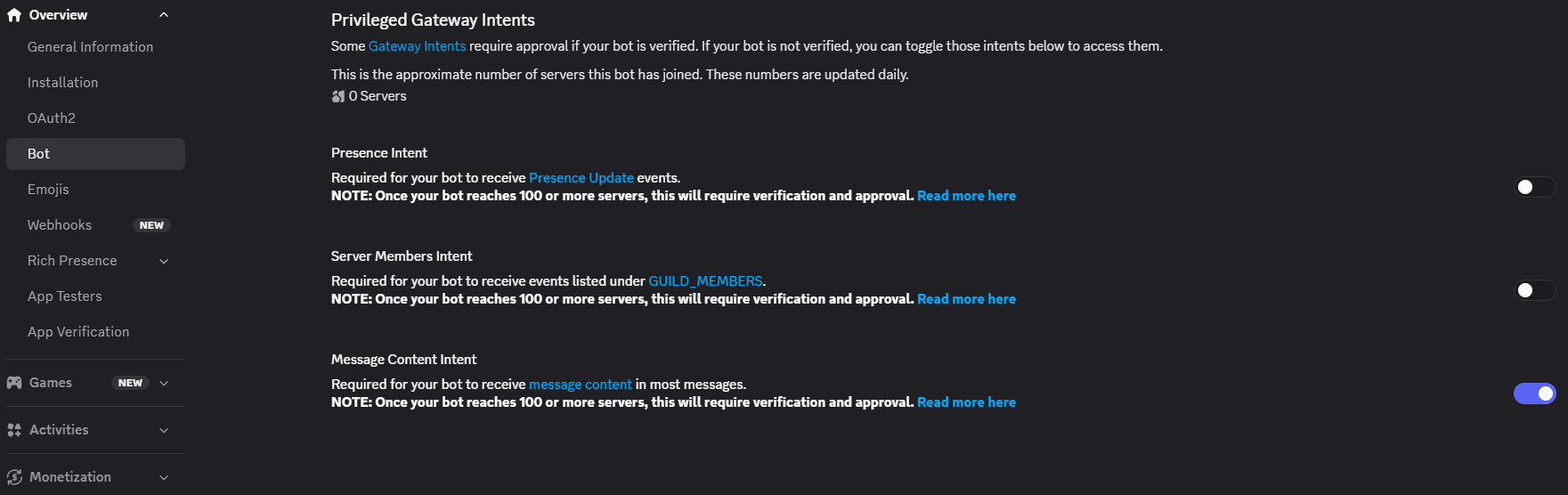
4. Set up OAuth2 scopes and permissions
Section titled “4. Set up OAuth2 scopes and permissions”Go to OAuth2 > URL Generator. Check the bot scope.
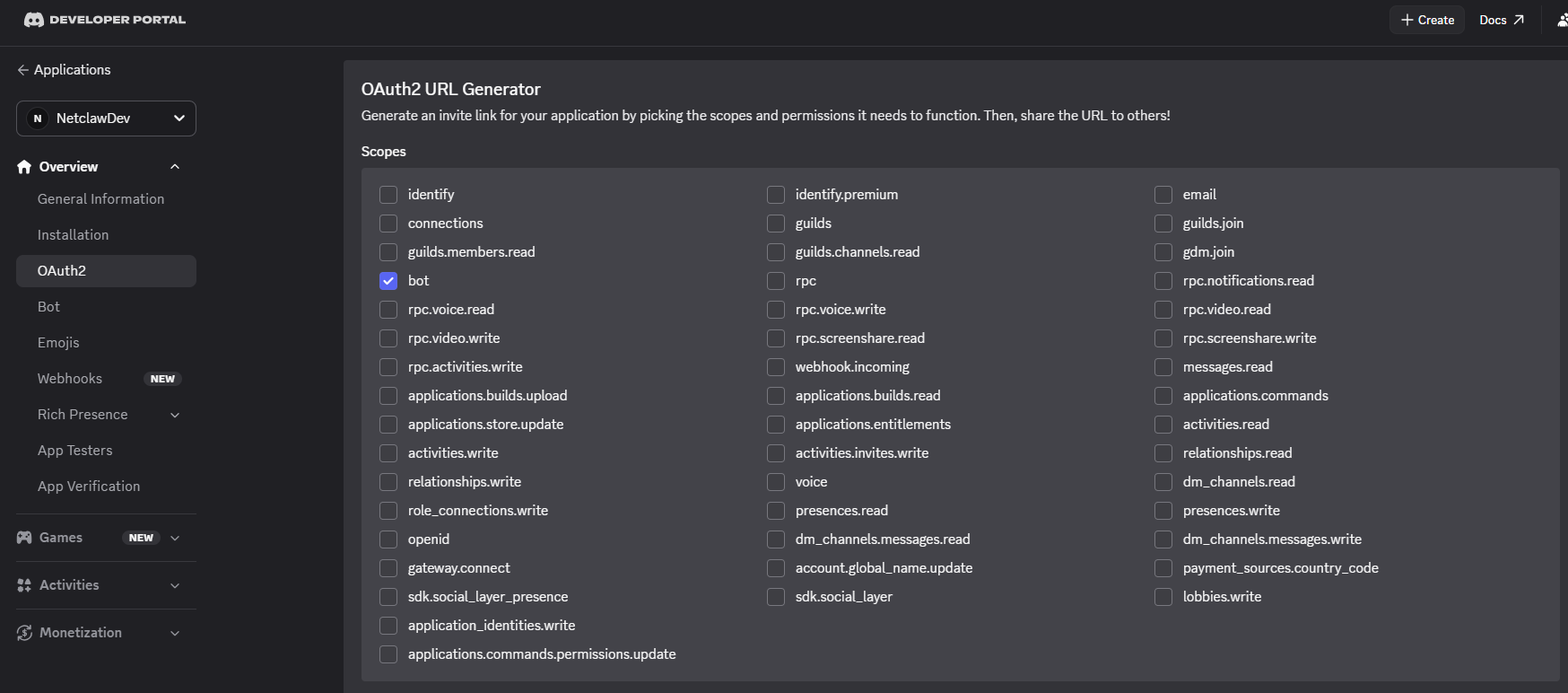
Then select bot permissions:
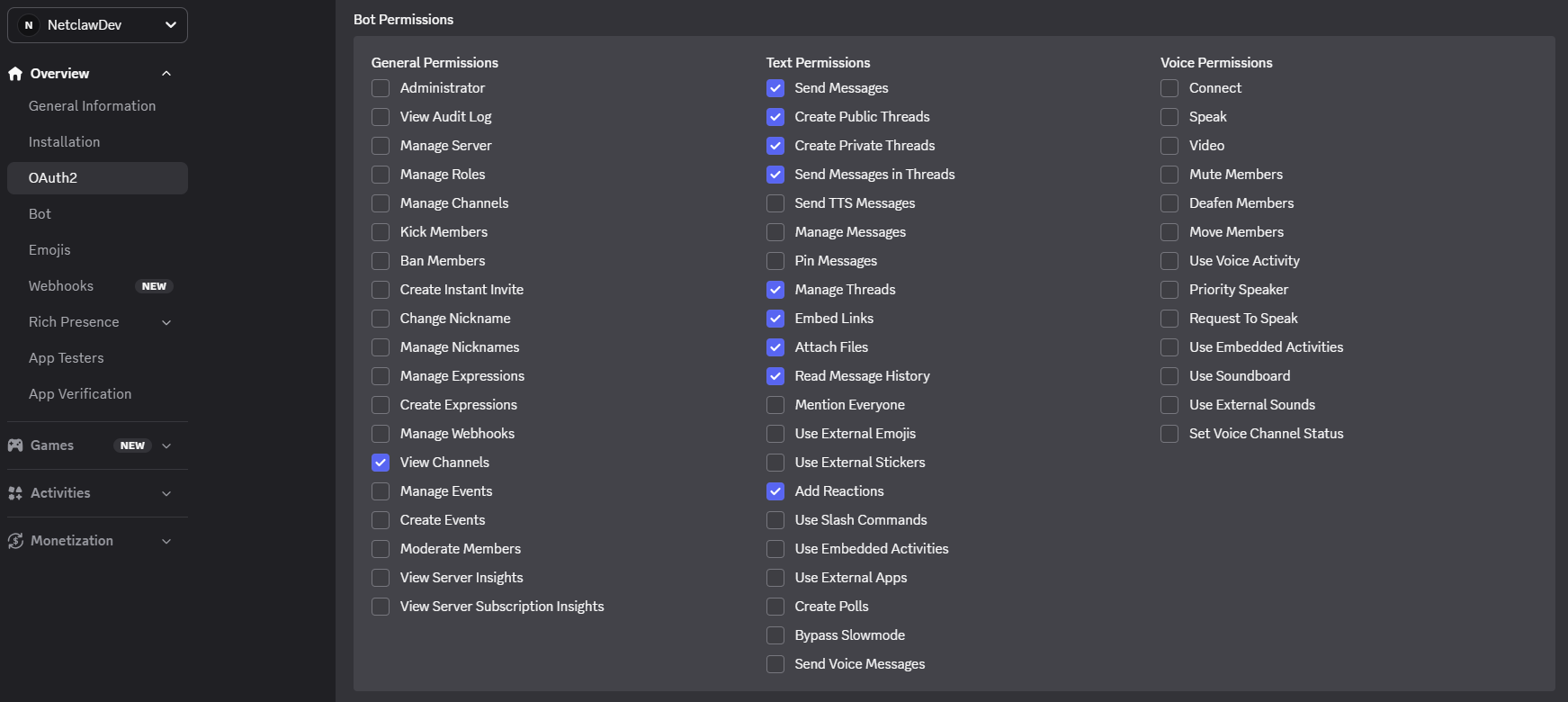
Required permissions: Send Messages, Create Public Threads, Send Messages in Threads, Manage Threads, Embed Links, Read Message History, Add Reactions.
Manage Threads is needed so netclaw can rename threads with session titles as conversations progress.
5. Install the bot to your server
Section titled “5. Install the bot to your server”Copy the generated URL at the bottom of the page.

Open it in your browser. Discord asks which server to add the bot to — pick yours and click Continue.
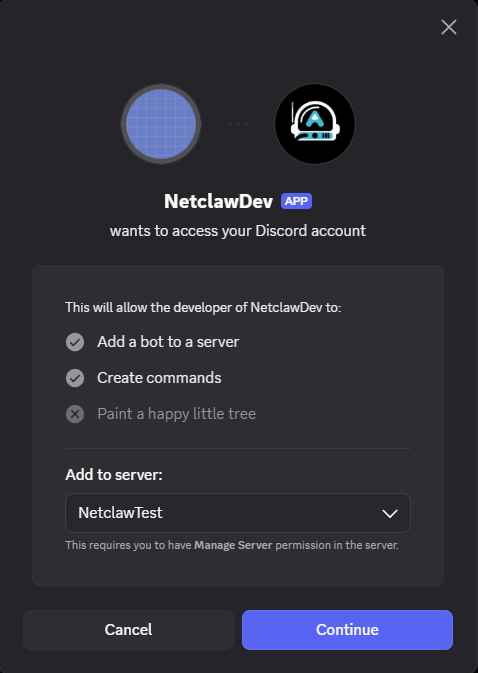
Discord then lists the permissions the bot is requesting. Confirm they match the set from step 4 and click Authorize.
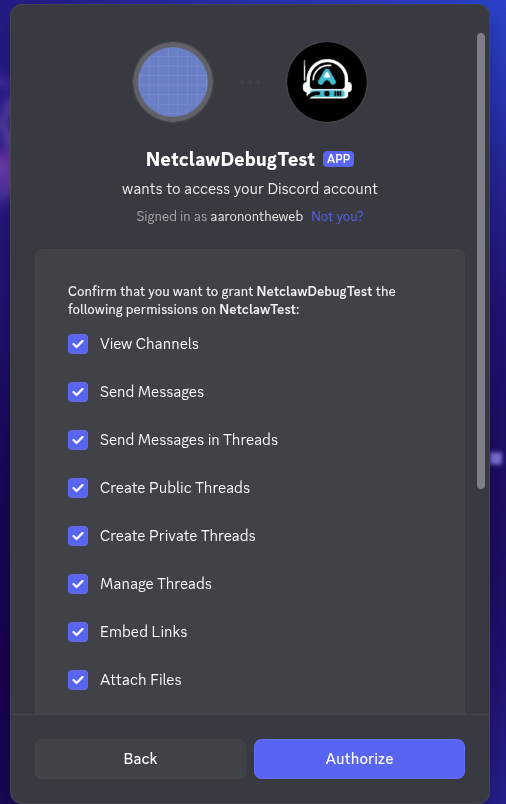
The bot appears in your server’s member list once the daemon is running.
6. Set Installation to None
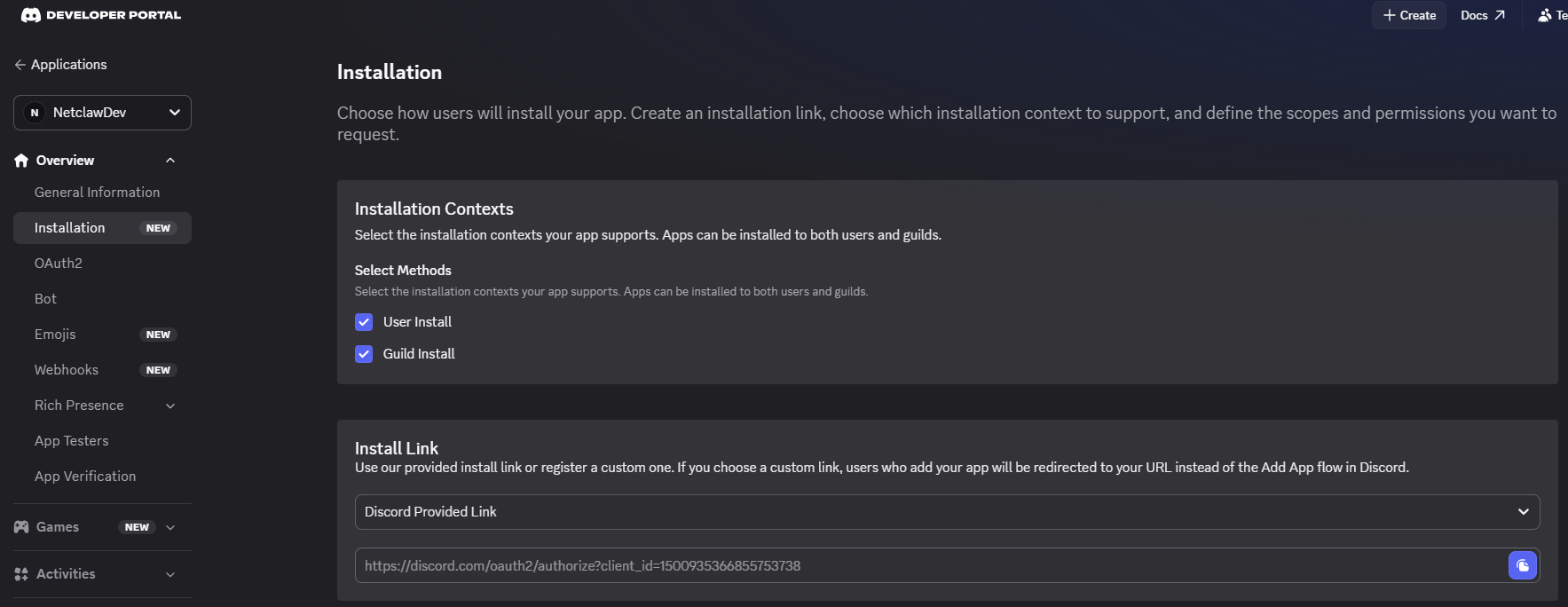
Section titled “6. Set Installation to None”Under Installation in the left sidebar, set the install method to None. This prevents users from installing the bot to other servers through Discord’s app directory.
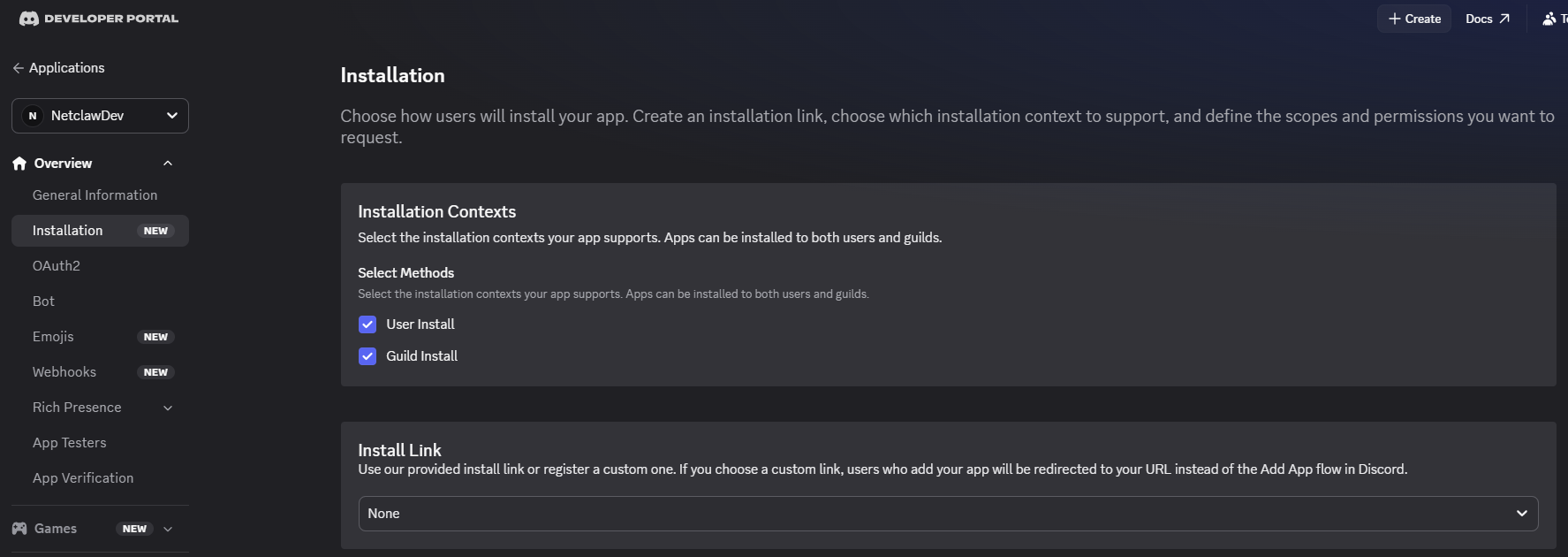
If you want others to install via a link you control, use Discord Provided Link instead.
Configure netclaw
Section titled “Configure netclaw”Run netclaw config, navigate to Channels, and enable Discord. Enter your bot token when prompted — netclaw stores it encrypted and saves the config automatically.
netclaw config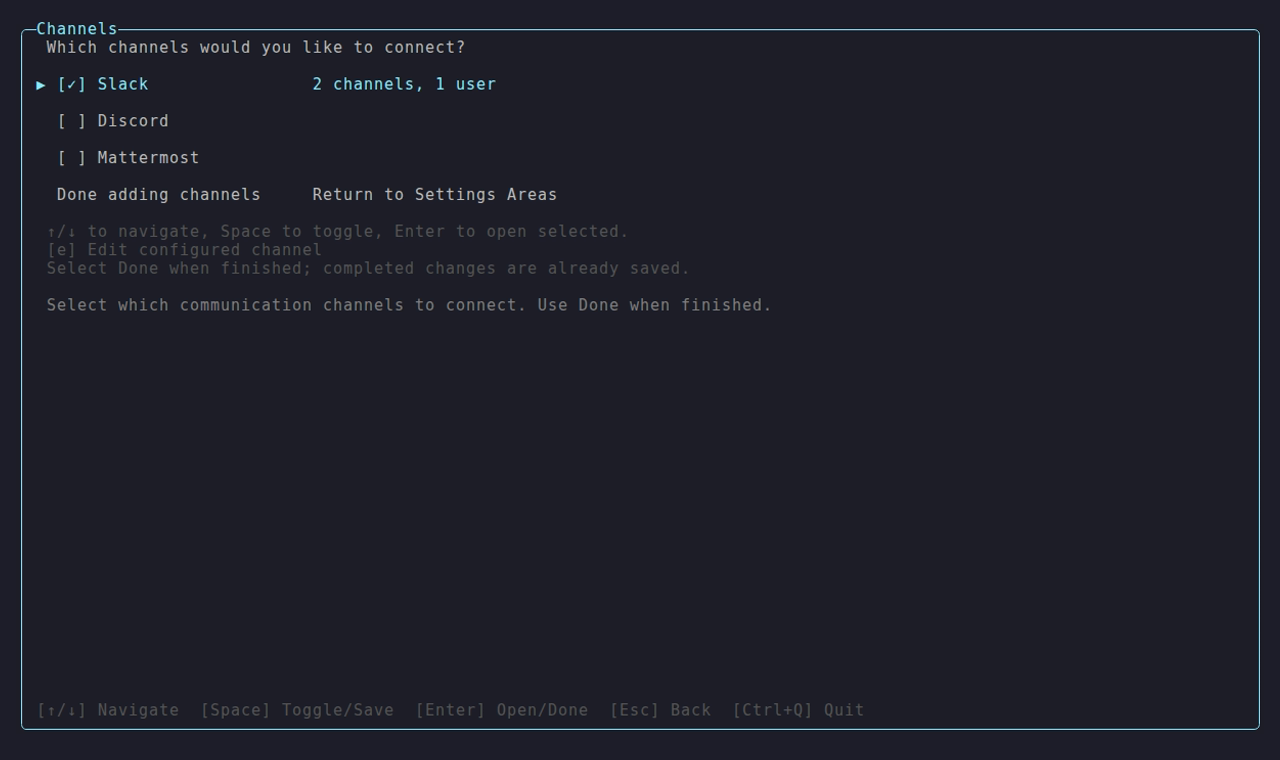
The Channels area in netclaw config — enable Discord and enter its bot token here (the adapter list also shows Slack and Mattermost).
Manual setup
Section titled “Manual setup”For scripted or headless installs, store the token with netclaw secrets and edit the config file directly:
netclaw secrets set Discord.BotToken your-bot-tokenThen enable Discord in ~/.netclaw/config/netclaw.json:
{ "Discord": { "Enabled": true, "DefaultChannelId": "123456789012345678" }}Environment variables work too — useful for Docker and CI:
export NETCLAW_Discord__BotToken="your-bot-token"export NETCLAW_Discord__Enabled="true"How channel IDs are stored
Section titled “How channel IDs are stored”Enter channel names or IDs (comma-separated) in netclaw config → Channels. Netclaw resolves each entry against the Discord API to its canonical channel ID before saving. The stored AllowedChannelIds field holds IDs, not display names; display names are shown dynamically in the config UI. Names that cannot be resolved remain in AllowedChannelIds verbatim and are flagged with a warning — they are inert until the bot can see the channel, at which point a background refresh rewrites them to canonical IDs. Entries added one-at-a-time via the add-channel flow are rejected at entry time if they do not resolve. A genuine auth or network failure blocks the entire save.
All config fields
Section titled “All config fields”| Field | Type | Default | Description |
|---|---|---|---|
Enabled | bool | false | Turn on Discord |
BotToken | string | — | Bot token from the Developer Portal. Store with netclaw secrets set. |
DefaultChannelId | string | — | Channel ID for the default channel |
MentionOnly | bool | true | Only respond when @-mentioned |
AllowDirectMessages | bool | false | Accept DMs |
MentionRequiredInDm | bool | false | Require @-mention even in DMs |
AllowedChannelIds | string[] | [] | Channel allow-list. Empty + no default = all channel messages denied |
AllowedUserIds | string[] | [] | User allow-list. Empty = everyone in allowed channels is accepted |
ChannelAudiences | object | {} | Per-channel audience overrides. Keys are channel IDs or "dm". Values: "personal", "team", "public". |
The token lives in ~/.netclaw/config/secrets.json (encrypted at rest).
Access control
Section titled “Access control”Discord ACL is default-deny. Three settings decide who talks to the bot and where.
Channels
Section titled “Channels”The bot only responds in channels that pass the allow-list:
DefaultChannelIdallows one channelAllowedChannelIdsallows multiple- If both are empty, every channel message is denied. This is the number one setup mistake.
{ "Discord": { "DefaultChannelId": "123456789012345678", "AllowedChannelIds": ["234567890123456789", "345678901234567890"] }}Finding channel IDs: right-click a channel in Discord with Developer Mode on, click “Copy Channel ID.”
AllowedUserIds restricts who gets responses:
- Empty (default) — everyone in allowed channels is accepted
- Non-empty — only listed user IDs get responses, everyone else is silently dropped
Finding user IDs: right-click a user in Discord with Developer Mode on, click “Copy User ID.”
Users in AllowedUserIds are treated as TrustedInternal by the security model. Everyone else is UntrustedExternal.
Direct messages
Section titled “Direct messages”DMs are off by default:
{ "Discord": { "AllowDirectMessages": true }}With DMs on, users can just type normally — MentionRequiredInDm defaults to false, so no @-mention needed. Each user gets a single long-running DM session (unlike channels, where each root message starts a new session).
Audience overrides
Section titled “Audience overrides”Override the default audience per-channel with ChannelAudiences:
{ "Discord": { "ChannelAudiences": { "123456789012345678": "team", "dm": "personal" } }}The "dm" key is reserved — it matches every direct message rather than a channel ID. A channel-ID entry takes precedence over it. An unrecognized audience value is rejected outright: the message is denied rather than falling back to a default.
Security Model has the full breakdown on how audiences map to tools and permissions.
Behavior in Discord
Section titled “Behavior in Discord”Threads and sessions
Section titled “Threads and sessions”When someone messages the bot in a regular channel, netclaw creates a public thread on its first reply and continues the conversation there. The thread starts as “Netclaw” and netclaw renames it once the LLM generates a session title.
Thread replies don’t need a @-mention — if there’s an active session in the thread, the bot responds to everything.
Idle conversations are freed from memory after 2 hours (individual sessions after 1 hour, unless an approval request is pending). On daemon restart, up to 200 messages of thread history are backfilled so in-progress conversations resume.
Mention behavior
Section titled “Mention behavior”MentionOnly: true (the default) means the bot ignores messages that don’t @-mention it. Two exceptions:
- Thread replies — if a thread already has an active session, the bot responds without needing a mention
- Daemon restart recovery — if the daemon restarts and a user continues a thread, the session is re-created from the thread’s message history
Netclaw strips the @-mention before passing text to the LLM.
Message formatting
Section titled “Message formatting”Discord natively renders markdown — bold, italic, code blocks, headers, lists, links. Responses longer than 2,000 characters are split at newline boundaries.
Tool approval
Section titled “Tool approval”When a tool call needs approval, netclaw posts an interactive button prompt in the thread. The prompt shows the tool name, action, and pattern(s). The full set is five buttons: Once, This chat, Always here, Always anywhere, and Deny — though Always here is omitted when the working directory is a session scratch path or too shallow for a folder-scoped grant. Always anywhere grants the command everywhere, so use it sparingly. netclaw shows fewer buttons when some don’t apply — a command it can’t cleanly parse (shell control flow, or unbalanced quotes) drops to just Once and Deny. Only the user who triggered the request can approve.
If posting the button prompt fails, netclaw falls back to a text prompt where you reply with the letter shown next to each option.
After a decision, netclaw updates the original message in-place with a checkmark or denied icon.
Reminders
Section titled “Reminders”Discord reminders deliver to guild text channels only — user DMs are not supported as reminder targets. Accepted formats:
<#123456789012345678>— Discord channel mentionchannel:123456789012345678— explicit channel prefix
Proactive messaging
Section titled “Proactive messaging”The LLM can start a conversation with the generic send_channel_message tool — pass channel_key: discord and a destination (a guild text channel or a DM) resolved via lookup_channel_user or lookup_channel_destination. ACL rules still apply.
Ignored messages
Section titled “Ignored messages”The bot drops: empty messages (no text, no attachments), other bots’ messages, its own messages, DMs when AllowDirectMessages is off, and un-mentioned channel messages when MentionOnly is on and there’s no active thread.
Messages over 4,000 characters are truncated.
Verify it works
Section titled “Verify it works”Restart the daemon and check status:
netclaw daemon stop && netclaw daemon startnetclaw statusDiscord should show connected. If it shows disabled or disconnected, check the troubleshooting guide.
Then @-mention the bot in an allowed channel. If it creates a thread and responds, you’re set.
Troubleshooting
Section titled “Troubleshooting”Common problems and fixes are in Channel Troubleshooting. The hits:
- Connected but silent —
AllowedChannelIdsis empty and noDefaultChannelIdis set, so all traffic gets denied - Invalid bot token — HTTP 401 on startup means the token is wrong or was regenerated in the Developer Portal
- Gateway disconnected — the daemon couldn’t establish a connection. Usually a network issue or Discord outage.
- Message Content privileged intent not enabled — turn it on under Privileged Gateway Intents in the Developer Portal
Next steps
Section titled “Next steps”- Configure audiences and approval gates to control what tools are available in each channel
- Set up systemd so the daemon stays running after reboots
- Add Slack if your team uses both
Related pages
Section titled “Related pages”netclaw config— Channelsnetclaw secrets— token managementnetclaw status— primary diagnostic tool for Discord- Security Model — audiences and approval gates
- Channel Troubleshooting — error codes and debug logging
- Slack — sibling channel integration
External resources
Section titled “External resources”- Discord Developer Portal — create and manage your bot
- Discord Developer Docs: Getting Started — bot setup walkthrough
- Discord: Privileged Intents — Message Content intent setup
- Discord: Bot Permissions — permission reference
- Discord: Enable Developer Mode — how to copy channel and user IDs
- Discord Status — check for outages
 Built by Petabridge