Pairing Remote Devices
Your netclaw daemon runs on one machine but you want to use the CLI from another — a laptop, a second server, a container you can’t shell into. Pairing takes two commands: generate a time-limited code on the daemon, exchange it from the remote device, and the client gets a bearer token for all future requests.
Before You Begin
Section titled “Before You Begin”- Netclaw installed on both machines (
netclaw initcompleted on the daemon host). The remote device only needs thenetclawbinary — you don’t need to runnetclaw initon it. Pairing replaces init for client-only machines. - The daemon’s exposure mode set to something other than
local— remote pairing doesn’t work over loopback. The default daemon port is 5199; make sure the chosen proxy or tunnel path can reach the daemon. - Network connectivity between the two machines (same tailnet, tunnel, or direct)
1. Set an Exposure Mode
Section titled “1. Set an Exposure Mode”By default, the daemon only listens on loopback. You need to change this before any remote device can connect.
During netclaw init, Step 9 handles this:
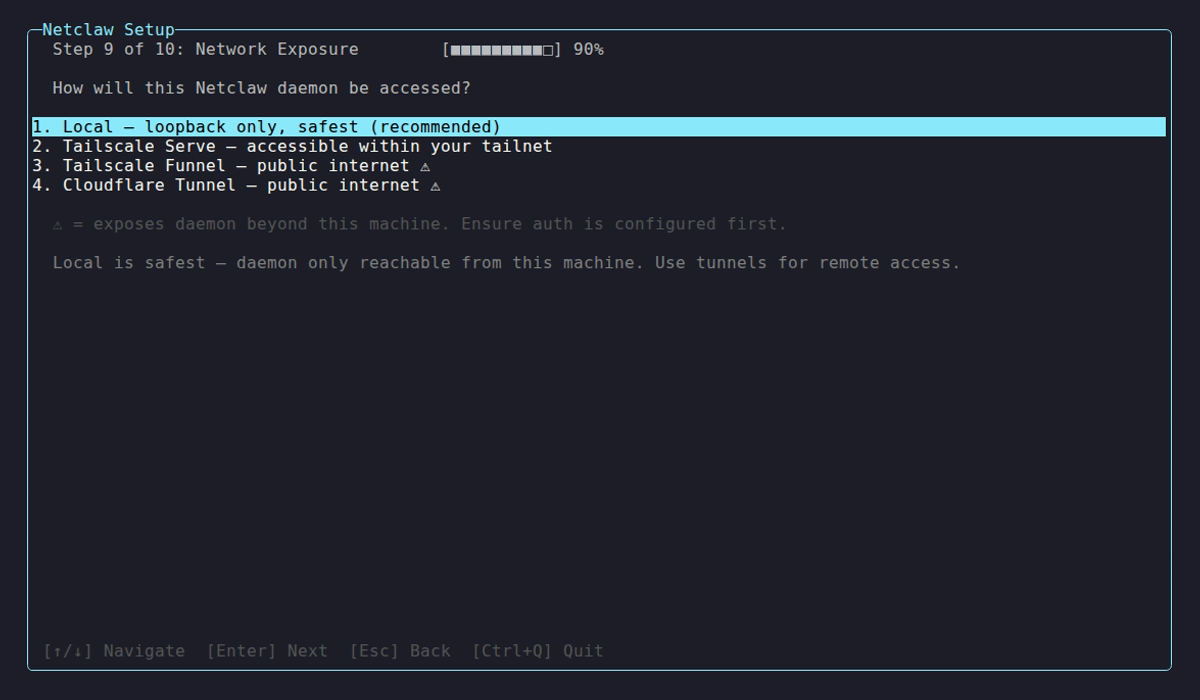
| Mode | Config value | Requires | Who can reach it |
|---|---|---|---|
| Local | local | Nothing | Loopback only (default) |
| Reverse Proxy | reverse-proxy | Reverse proxy + trusted proxy config | Whatever the proxy exposes |
| Tailscale Serve | tailscale-serve | tailscaled running | Same tailnet |
| Tailscale Funnel | tailscale-funnel | tailscaled running | Public internet |
| Cloudflare Tunnel | cloudflare-tunnel | cloudflared running | Internet via Cloudflare Tunnel |
To change the mode after init, edit ~/.netclaw/config/netclaw.json:
{ "Daemon": { "ExposureMode": "tailscale-serve" }}For tunnel setup details — Tailscale Serve commands, Cloudflare Tunnel configuration, and how each mode binds the daemon — see Exposure Modes.
Restart the daemon after changing exposure mode (netclaw daemon stop && netclaw daemon start, or systemctl restart netclaw if you’re using systemd).
2. Generate a Pairing Code (Daemon Side)
Section titled “2. Generate a Pairing Code (Daemon Side)”On the machine running the daemon:
netclaw daemon pairOutput:
Pairing code:  ABCD-EF23Expires at:    14:32:15 (local time)
On the remote device, run:  netclaw pair http://my-server:5199
Codes expire after 5 minutes and are single-use. Generating a new code replaces any previous one — only one active at a time.
The character set (23456789ABCDEFGHJKLMNPQRSTUVWXYZ) deliberately excludes 0/O/1/I/L to avoid misreads.
Docker
Section titled “Docker”If the daemon runs in a container, docker exec is still the simplest daemon-host path:
docker exec -it <container-name> netclaw daemon pairThe daemon also logs pairing codes at Information level:
docker logs <container-name> | grep "Pairing code"Use docker logs when you only need the code. Use docker exec when you want to pair or manage devices from inside the container.
3. Pair the Remote Device (Client Side)
Section titled “3. Pair the Remote Device (Client Side)”On the remote machine:
netclaw pair http://my-server:5199For Tailscale, Cloudflare Tunnel, and reverse-proxy modes, the endpoint URL differs — check Exposure Modes for the correct format for each mode.
The CLI prompts for two things:
Pairing code (XXXX-XXXX): ABCD-EF23Device name [my-laptop]:Device name defaults to the machine’s hostname. Hit Enter to accept the default, or type a custom name.
On success:
- The CLI saves the bearer token to
~/.netclaw/config/secrets.json - The daemon endpoint is written to
~/.netclaw/client/config.json netclaw chat,netclaw status, and all other remote commands work from here
If a device with the same name already exists on the daemon, the exchange returns HTTP 409. Revoke the old device first (see below).
You can pair as many devices as you need.
4. Verify the Connection
Section titled “4. Verify the Connection”From the newly paired device:
netclaw statusIf you get system status back, pairing worked. The CLI attaches the bearer token automatically from here on.
Managing Paired Devices
Section titled “Managing Paired Devices”Run these from the daemon host.
List devices
Section titled “List devices”netclaw daemon devicesShows Name, Created, and Last Used for each paired device. Prints No paired devices. if none exist.
Revoke a device
Section titled “Revoke a device”netclaw daemon devices revoke <name>After revocation, the device gets 401 on its next request. Use this when a device is lost, retired, or you need to re-pair with the same name.
How Tokens Work
Section titled “How Tokens Work”- Raw tokens never hit disk on the daemon side — it stores a SHA256 hash with a per-device salt in
~/.netclaw/config/devices.json(file permissions600on Linux) - Clients keep the raw token in
~/.netclaw/config/secrets.json - In
localmode, loopback connections still work without bearer auth - In remote-auth-required modes, bearer auth may still be required even on a loopback control-plane endpoint
Endpoint Resolution
Section titled “Endpoint Resolution”When the CLI connects, it checks these in order:
NETCLAW_DAEMON_ENDPOINTenvironment variable~/.netclaw/client/config.json(written bynetclaw pair)- Daemon bind config (
Daemon.Host+Daemon.Port) if available - Default:
http://127.0.0.1:5199
If the daemon bind host is a wildcard like 0.0.0.0, the CLI normalizes it to a connectable local endpoint instead of trying to connect to the wildcard address.
Override with the env var when you need to switch between multiple daemons without re-pairing.
Exchange Endpoint Security
Section titled “Exchange Endpoint Security”The pairing endpoint has three layers of brute-force protection:
| Layer | Behavior |
|---|---|
| Rate limiter | 5 attempts/minute per IP |
| Fail2ban-style guard | 10 failures in 15 min blocks the IP for 15 min |
| No-code-pending gate | Returns 404 when no code is active |
With a 32-character alphabet, 8-character codes, 5-minute expiry, and 5 attempts/minute, that makes brute-force guessing impractical.
Troubleshooting
Section titled “Troubleshooting””Authentication failed: the daemon rejected the bearer token”
Section titled “”Authentication failed: the daemon rejected the bearer token””The token was revoked or the daemon’s device store was reset. Re-pair:
netclaw pair <endpoint>If the daemon is already running, run netclaw daemon pair on the daemon host to get a fresh code.
If the device store was lost and a non-local daemon now fails startup, temporarily switch Daemon.ExposureMode to local or restore devices.json and secrets.json from backup. Then start the daemon, run netclaw daemon pair, and switch back.
Pairing code expired
Section titled “Pairing code expired”Codes last 5 minutes. Generate a new one with netclaw daemon pair and try again.
HTTP 409 — device name already exists
Section titled “HTTP 409 — device name already exists”A device with that name is already paired. Either pick a different name during pairing, or revoke the existing one first:
netclaw daemon devices revoke <name>Can’t connect to the daemon at all
Section titled “Can’t connect to the daemon at all”Check the basics:
- Is the daemon running? (
netclaw daemon starton the host) - Is the exposure mode set to something other than
local? - Can you reach the daemon through the intended endpoint or proxy path?
- Is a firewall blocking port 5199?
If the daemon uses reverse-proxy, also confirm the daemon itself is not still bound to loopback and that TrustedProxies includes the proxy’s source IP or CIDR.
Run netclaw doctor on the daemon host — it includes exposure-mode health checks.
IP blocked after too many failed attempts
Section titled “IP blocked after too many failed attempts”Wait 15 minutes, or fix the issue from a different IP. Too many wrong codes temporarily block your IP for 15 minutes.
Next Steps
Section titled “Next Steps”netclaw chat— start talking to your agent from the paired devicenetclaw status— check daemon connectivity and endpoint URLnetclaw doctor— diagnose exposure mode and connectivity issues- Exposure Modes — all
Daemon.ExposureModeoptions and tunnel setup netclaw init— the setup wizard handles bootstrap pairing during non-local setup
External Resources
Section titled “External Resources”- Tailscale Serve — expose local services to your tailnet
- Tailscale Funnel — expose local services to the public internet via Tailscale
- Cloudflare Tunnel — route traffic to your daemon through Cloudflare’s network
- Caddy reverse_proxy — example reverse proxy if you’re exposing netclaw behind Caddy
- Tailscale: What is a tailnet? — networking concepts for the Tailscale Serve mode
 Built by Petabridge