
MCP Tool Permissions
You’ve added MCP servers to netclaw but the tools aren’t showing up in Team or Public sessions. That’s by design — new servers start fully locked down.
For the full TUI and CLI reference, see netclaw mcp. For the config schema, see MCP Servers.
Before You Begin
Section titled “Before You Begin”- At least one MCP server added (
netclaw mcp add) and the daemon running — runnetclaw mcp listto confirm your servers are connected - Familiarity with netclaw’s three audiences: Personal (TUI, SignalR web client), Team (Slack), Public (unknown channels)
How Audience Defaults Work
Section titled “How Audience Defaults Work”Each audience starts with different MCP access:
| Audience | Servers allowed | Tools granted |
|---|---|---|
| Personal | All | All |
| Team | None (allowlist, empty) | None |
| Public | None (allowlist, empty) | None |
No audience has approval gates configured by default — all granted tools run automatically. netclaw init recommends adding shell_execute: Approval for the Personal audience, but that’s an opt-in step during setup.
Personal gets everything out of the box. Team and Public get nothing — you opt in server by server, tool by tool.
Grant Permissions with the TUI
Section titled “Grant Permissions with the TUI”netclaw mcp permissionsUse the TUI for interactive setup when you want to explore what’s available.
Pick a server
Section titled “Pick a server”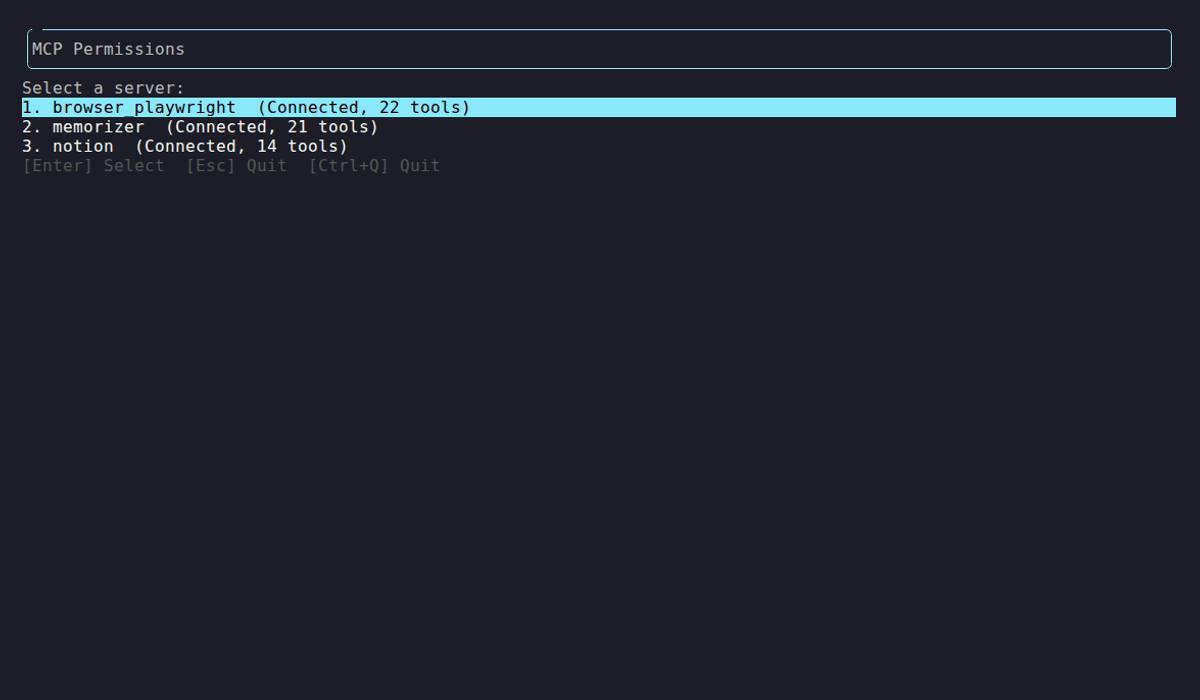
The server list shows connection status and tool count for each configured server. Select one to manage its grants.
Grant tools per audience
Section titled “Grant tools per audience”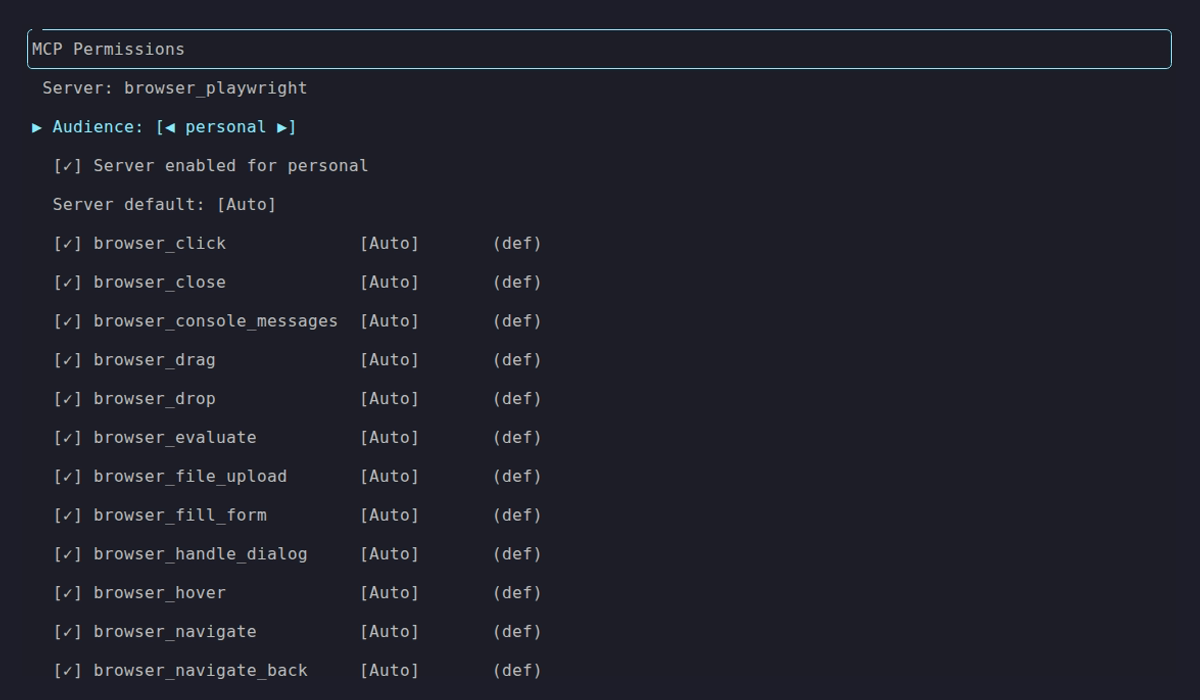
Personal audience — all tools granted, Auto approval mode. Use ←/→ on the Audience row to switch between Personal, Team, and Public.
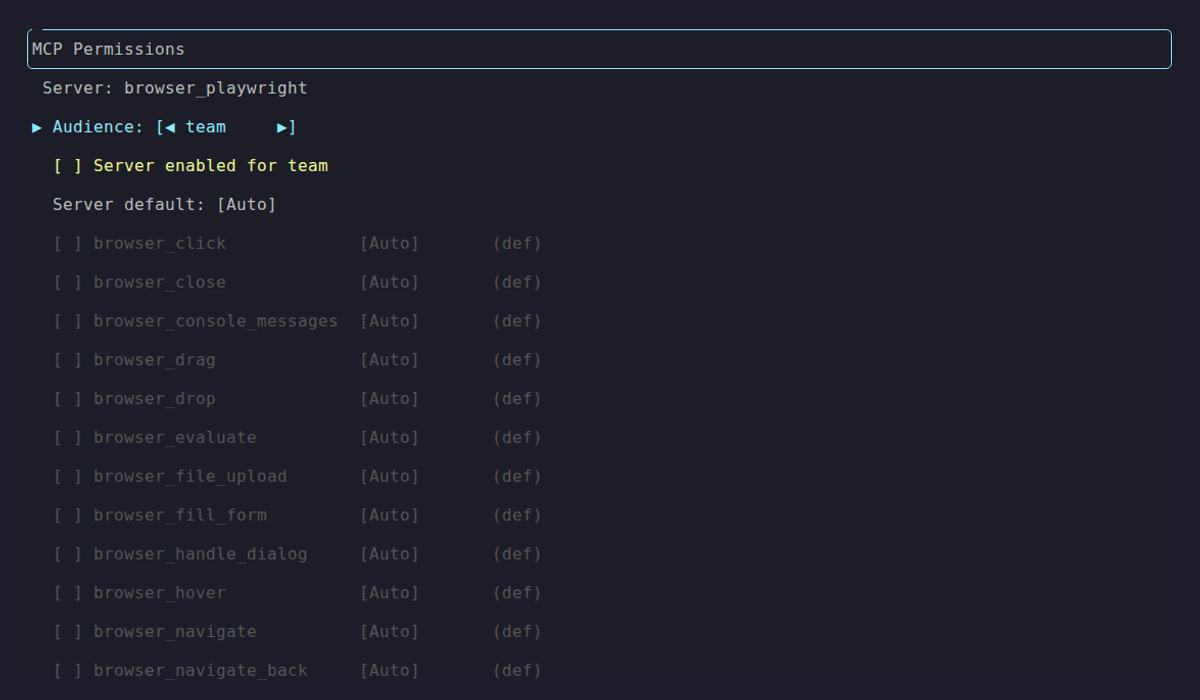
Team audience — server not enabled, nothing granted. Same defaults apply to Public.
To open up a server for Team:
- Press
Eto enable the server for this audience - Press
Ato toggle all tools on, orSpaceon individual tools - Press
Mto cycle the server’s default approval mode (Auto / Approval / Deny) - Press
Pon any row to set a per-tool approval override - Press
Enterto save
Changes write to ~/.netclaw/config/netclaw.json. Run netclaw daemon restart to apply.
Grant Permissions via JSON
Section titled “Grant Permissions via JSON”For automation or version-controlled config, edit netclaw.json directly.
Enable a server for an audience
Section titled “Enable a server for an audience”Add the server name to AllowedMcpServers:
{ "Tools": { "AudienceProfiles": { "Team": { "McpServersMode": "Allowlist", "AllowedMcpServers": ["memorizer", "notion"] } } }}Grant specific tools
Section titled “Grant specific tools”Use McpServerToolGrants to control which of a server’s tools are visible. Omit a server from this map to pass all its tools through:
{ "Tools": { "AudienceProfiles": { "Team": { "McpServersMode": "Allowlist", "AllowedMcpServers": ["notion"], "McpServerToolGrants": { "notion": ["notion-search", "notion-fetch", "notion-create-pages"] } } } }}Team users see only notion-search, notion-fetch, and notion-create-pages. Everything else on the Notion server is invisible to the model.
Grant Permissions via CLI
Section titled “Grant Permissions via CLI”Skip the TUI for quick one-off changes:
# Grant specific tools for teamnetclaw mcp tools notion --audience team \  --grant "notion-search,notion-fetch,notion-create-pages"
# Snapshot all currently discovered tools into grantsnetclaw mcp tools memorizer --snapshot
Set Approval Policies
Section titled “Set Approval Policies”Approval policies control whether granted tools run automatically or need human confirmation:
| Mode | Behavior |
|---|---|
Auto | Runs immediately, no prompt |
Approval | Human must confirm before execution |
Deny | Always blocked, no prompt offered |
Precedence
Section titled “Precedence”Netclaw resolves the effective mode in order:
- Exact tool override —
ToolOverrides["notion/notion-delete-page"] - Server default —
McpServerDefaults["notion"] - Audience default —
DefaultMode
First match wins.
Example: Auto for reads, Approval for writes
Section titled “Example: Auto for reads, Approval for writes”{ "Tools": { "AudienceProfiles": { "Personal": { "ApprovalPolicy": { "DefaultMode": "Auto", "McpServerDefaults": { "notion": "Auto" }, "ToolOverrides": { "notion/notion-delete-page": "Approval", "notion/notion-update-page": "Approval", "shell_execute": "Approval" } } } } }}MCP tool override keys use the format "{serverName}/{toolName}" — e.g., "notion/notion-delete-page".
Server defaults for new tools
Section titled “Server defaults for new tools”Newly discovered tools on a server inherit its McpServerDefaults entry automatically:
"McpServerDefaults": { "browser_playwright": "Approval"}Every tool on browser_playwright now requires approval unless you add an explicit ToolOverrides entry for it.
Verify It Works
Section titled “Verify It Works”After changing permissions, restart the daemon and confirm:
netclaw daemon restartnetclaw mcp tools notion --audience teamThe output lists every tool the Team audience can see on the notion server, along with the effective approval mode for each.
Persistent Approvals
Section titled “Persistent Approvals”When a user picks one of the “Always” options — Always here (the command’s verb, scoped to a directory) or Always anywhere (a global grant) — at an approval prompt, the decision persists to ~/.netclaw/config/tool-approvals.json. These approvals survive daemon restarts.
To revoke a persistent approval, edit the file directly:
{ "audiences": { "personal": { "shell_execute": ["git push", "npm install"] } }}Remove entries you no longer want auto-approved. netclaw doctor warns about stale approvals for disabled audiences.
If tool-approvals.json becomes corrupt, netclaw quarantines it to tool-approvals.json.invalid and starts with an empty store. Fail-closed — no approvals carry over until you fix the file.
Headless Mode and Approval Gates
Section titled “Headless Mode and Approval Gates”Approval gates only work on interactive channels. Non-interactive sessions auto-deny all gated tools immediately — there’s no human to ask.
| Channel | Supports approval? |
|---|---|
TUI (netclaw chat) | Yes |
| Slack | Yes |
| SignalR (web client) | Yes |
Headless (netclaw chat -p) | No — auto-deny |
| Reminders | No — auto-deny |
| Webhooks | No — auto-deny |
If your reminders, webhooks, or headless sessions need a tool, that tool must be set to Auto approval mode or it won’t execute.
Interactive channels that don’t respond within 5 minutes also auto-deny. The model receives a generic tool-execution error with no indication that approval was the cause.
Troubleshooting
Section titled “Troubleshooting”Tools blocked for Team/Public even after granting
Section titled “Tools blocked for Team/Public even after granting”Check three things in order:
- Is the server in
AllowedMcpServersfor the audience (orMcpServersModeset to"All")? - Does
McpServerToolGrantslist the tool, or is the server omitted entirely (which passes all tools through)? - Is the tool set to
DenyinToolOverrides? A denied tool is blocked even if granted.
Run netclaw mcp tools <server> --audience team to see exactly what’s granted.
netclaw mcp list shows awaiting auth
Section titled “netclaw mcp list shows awaiting auth”The server needs authentication before you can grant tools. Run netclaw mcp auth <name> to complete the OAuth or token flow, then retry your grants.
Approval prompts never appear in automation
Section titled “Approval prompts never appear in automation”Expected behavior. Headless, reminders, and webhooks auto-deny all approval-gated tools. Set those tools to Auto for the relevant audience, or accept that they won’t run unattended.
Persistent approvals not working after daemon restart
Section titled “Persistent approvals not working after daemon restart”Check that ~/.netclaw/config/tool-approvals.json exists and is valid JSON. If it was quarantined (you’ll see a .invalid file alongside it), the original was corrupt. Inspect the quarantined copy and recreate the approvals you need.
netclaw doctor warns about stale approvals
Section titled “netclaw doctor warns about stale approvals”You have persistent approvals for an audience or server that’s been disabled. Clean up tool-approvals.json by removing entries for servers or audiences you no longer use.
Next Steps
Section titled “Next Steps”netclaw mcp— full TUI keybinding reference and CLI subcommands- MCP Servers config — server schema, transports, OAuth setup
- Security model — the four-layer invocation stack and audience system
- Hardening — production lockdown recommendations including MCP tool policy
External Resources
Section titled “External Resources”- Model Context Protocol specification — the wire protocol behind MCP tool servers
- MCP server registry — community-maintained list of available MCP servers
- Notion MCP server — official Notion MCP server for search, fetch, and page management
 Built by Petabridge