Connecting Slack
You’ve got netclaw installed but it’s not talking to Slack yet. This page covers the whole setup — creating a Slack app, wiring up tokens, and verifying the connection.
The Slack channel reference has the full config field list, ACL details, and message behavior docs. This page just gets you connected.
Before You Begin
Section titled “Before You Begin”- Netclaw installed and running (
netclaw initcompleted, or at least the daemon is up) - Permission to install apps in your Slack workspace (some orgs restrict this to admins)
- A channel in mind where the bot should respond
1. Create a Slack App
Section titled “1. Create a Slack App”Go to api.slack.com/apps and click Create New App. “From scratch” is fine.
Enable Socket Mode
Section titled “Enable Socket Mode”Under Settings > Socket Mode, flip the toggle on. Generate an App-Level Token when prompted — give it the connections:write scope. Copy the xapp-... token somewhere safe.
Socket Mode is an outbound WebSocket connection — netclaw dials out, so you don’t need a public URL or any ingress rules.
Add Bot Token Scopes
Section titled “Add Bot Token Scopes”Under OAuth & Permissions > Scopes, add these bot token scopes:
| Scope | Why |
|---|---|
app_mentions:read | Receive @-mention events |
channels:history | Read channel messages for thread backfill |
channels:read | Resolve channel names to IDs |
chat:write | Post messages and replies |
files:read | Access shared file content |
users:read | User lookup |
If you plan to use private channels, also add groups:history and groups:read.
Install to Workspace
Section titled “Install to Workspace”Click Install to Workspace under OAuth & Permissions. After authorizing, copy the Bot User OAuth Token (xoxb-...).
Invite the Bot
Section titled “Invite the Bot”In each Slack channel where netclaw should respond, run:
/invite @yourbotThe bot won’t auto-join channels — you have to invite it.
2. Configure Netclaw
Section titled “2. Configure Netclaw”The netclaw init wizard is fastest. Manual config gives you more control.
Fast Path: netclaw init
Section titled “Fast Path: netclaw init”If you haven’t run netclaw init yet, or want to reconfigure, this handles everything. Step 4 of the wizard covers channel setup — paste your tokens, pick Slack, done.
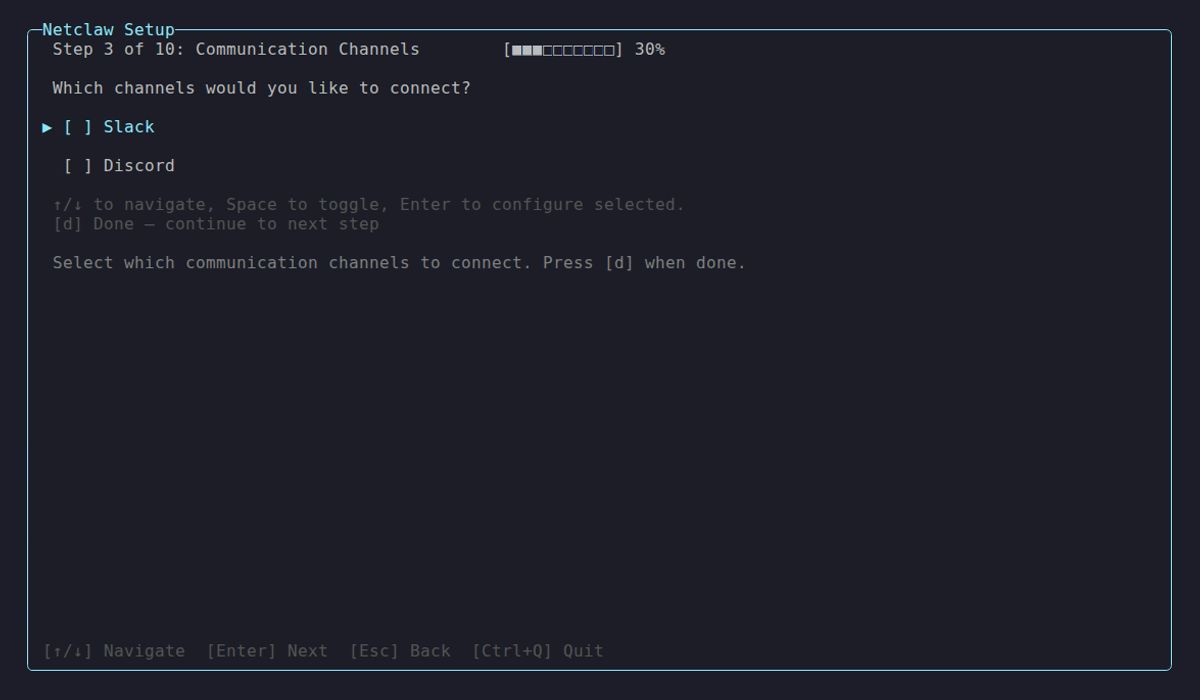
Paste both tokens when prompted — the wizard stores them encrypted and enables Slack.
Manual Path
Section titled “Manual Path”Store tokens with netclaw secrets:
netclaw secrets set Slack.BotToken xoxb-your-bot-tokennetclaw secrets set Slack.AppToken xapp-your-app-tokenThen enable Slack in ~/.netclaw/config/netclaw.json and set at least one allowed channel:
{ "Slack": { "Enabled": true, "DefaultChannelName": "general" }}Channel names go without the # prefix.
Environment variables also work:
export NETCLAW_Slack__BotToken="xoxb-..."export NETCLAW_Slack__AppToken="xapp-..."3. Set Allowed Channels
Section titled “3. Set Allowed Channels”If you used the manual path above, you still need to configure which channels the bot monitors. Set at least one:
| Field | What it does |
|---|---|
DefaultChannelName | Allow a single channel by name (resolved to an ID at startup) |
DefaultChannelId | Same thing, but by ID |
AllowedChannelIds | Allow multiple channels by ID |
{ "Slack": { "Enabled": true, "DefaultChannelName": "eng-claw", "AllowedChannelIds": ["C0123456789", "C9876543210"] }}To find a channel’s ID: right-click the channel name in Slack > “View channel details” > scroll to the bottom. Slack’s help article has screenshots.
The Slack channel reference covers user allow-lists, DM settings, and audience overrides — worth reading before you go to production.
4. Restart and Verify
Section titled “4. Restart and Verify”Restart the daemon to pick up the new config:
netclaw daemon stop && netclaw daemon startCheck the connection:
netclaw status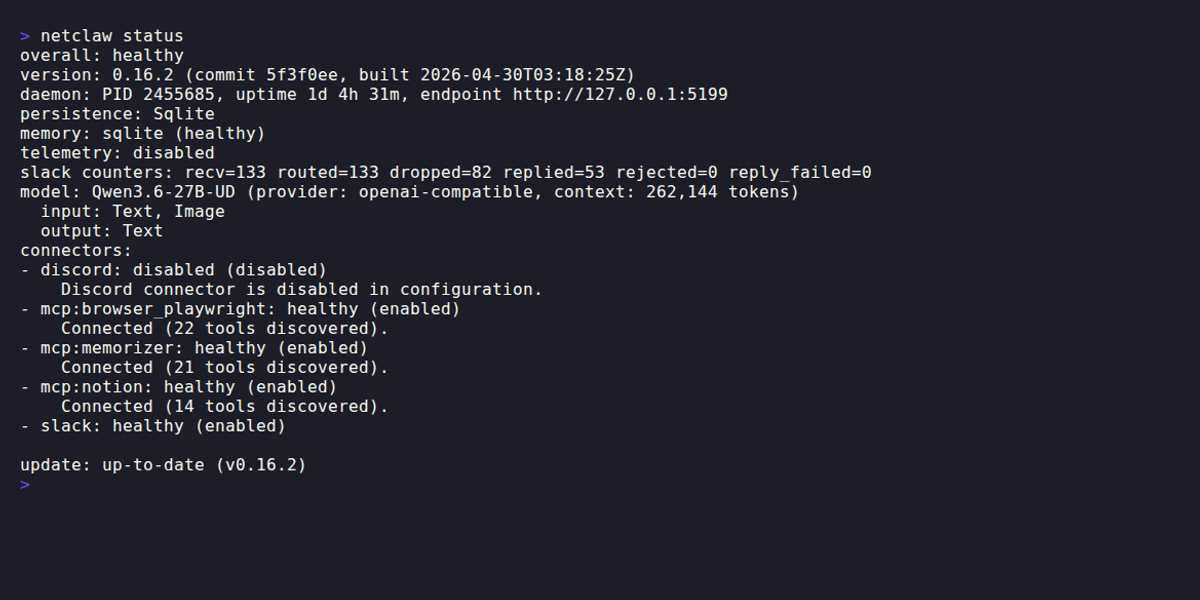
Slack should show connected. If it doesn’t, run the diagnostics:
netclaw doctor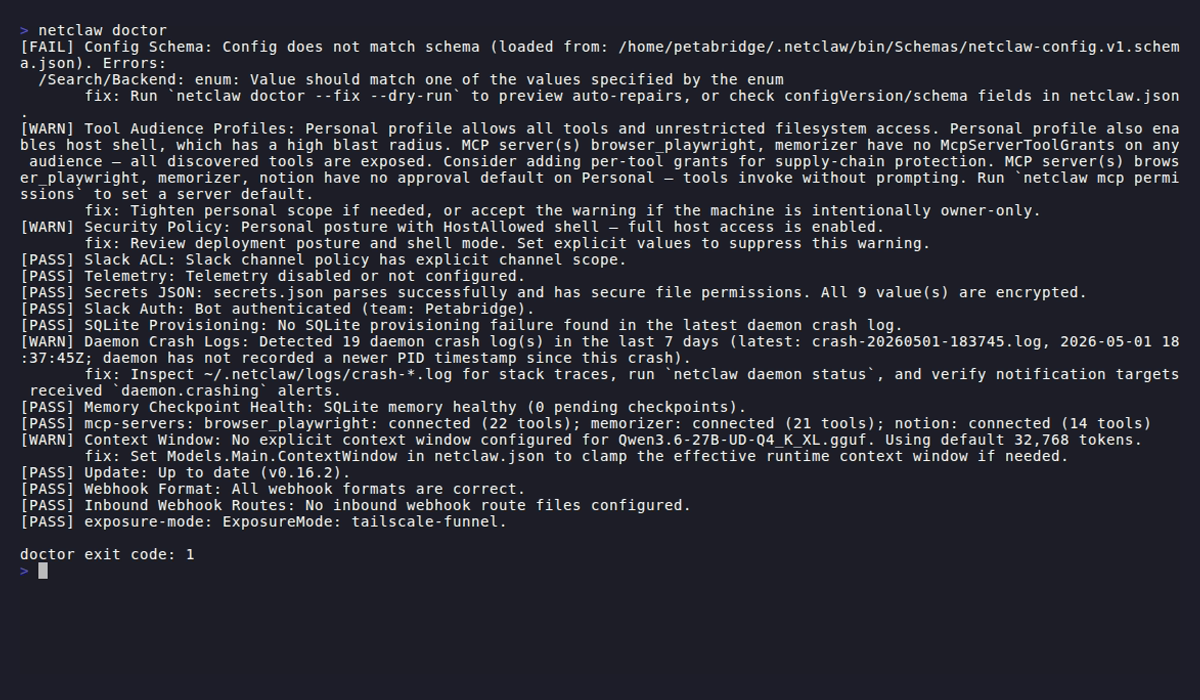
netclaw doctor validates your token against Slack’s auth.test API and warns if no channel allow-list or default channel is configured.
@-mention the bot in an allowed channel. If it responds, you’re done.
Troubleshooting
Section titled “Troubleshooting”Bot connects but never responds
Section titled “Bot connects but never responds”This is by far the most common problem. Tokens are configured, netclaw status shows connected, but the bot ignores every message.
Almost always, it’s the default-deny access control: AllowedChannelIds is empty and no DefaultChannelName/DefaultChannelId is set, so every message gets dropped.
Set DefaultChannelName or add channel IDs to AllowedChannelIds, then restart the daemon.
DefaultChannelName is set but bot still ignores messages
Section titled “DefaultChannelName is set but bot still ignores messages”If the channel name can’t be resolved at startup (typo, or the bot hasn’t been /invited to that channel), netclaw falls back to having no default channel — which means the default-deny access control kicks in. Check the daemon logs for a channel resolution warning, fix the name, and restart.
Bot works in some channels but not others
Section titled “Bot works in some channels but not others”The channel is either missing from AllowedChannelIds or the bot hasn’t been /invited there. Add the channel ID and run /invite @yourbot.
Socket Mode keeps disconnecting
Section titled “Socket Mode keeps disconnecting”The xapp-... App-Level Token has probably expired or been revoked. Generate a new one under Settings > Socket Mode in your Slack app config, then update it:
netclaw secrets set Slack.AppToken xapp-new-tokennetclaw doctor fails the Slack Auth check
Section titled “netclaw doctor fails the Slack Auth check”The xoxb-... Bot Token is invalid — either it expired or the app was uninstalled from the workspace. Reinstall the app under OAuth & Permissions, copy the fresh Bot Token, and update it:
netclaw secrets set Slack.BotToken xoxb-new-tokenNext Steps
Section titled “Next Steps”- Slack channel reference — all config fields, ACL details, message behavior, proactive messaging
- Security model — how audiences and approval gates work
netclaw doctor— run this periodically to catch token expiry and ACL drift- Discord channel reference — setting up the other supported channel
External Resources
Section titled “External Resources”- Slack API: Socket Mode — how outbound WebSocket connections work
- Slack: Getting Started with Socket Mode — quickstart walkthrough from Slack
- Slack API: Bot Token Scopes — full scope reference
- Slack: Finding Channel IDs — where to find IDs for ACL config
 Built by Petabridge