
Slack
Netclaw talks to Slack over Socket Mode — outbound WebSocket connections only. No public URLs, no ingress rules, no reverse proxies. You create a Slack app, give netclaw two tokens, and it shows up in your workspace as a bot.
Prerequisites
Section titled “Prerequisites”- Netclaw installed and initialized (
netclaw init) - A Slack workspace where you can install apps (some orgs restrict this to workspace admins)
Connecting Slack is a two-part process: create a Slack app to get your tokens, then enter them in netclaw config → Channels. The steps below walk through both.
Create a Slack app
Section titled “Create a Slack app”The fastest path: create from a manifest. Go to api.slack.com/apps and click Create New App.

Select From a manifest, pick your workspace, and paste this:
{ "display_information": { "name": "Netclaw", "description": "AI assistant powered by Netclaw", "background_color": "#512BD4" }, "features": { "app_home": { "home_tab_enabled": false, "messages_tab_enabled": true, "messages_tab_read_only_enabled": false }, "bot_user": { "display_name": "Netclaw", "always_online": true } }, "oauth_config": { "scopes": { "bot": [ "app_mentions:read", "channels:history", "channels:read", "chat:write", "chat:write.customize", "files:read", "files:write", "groups:history", "groups:read", "im:history", "im:read", "im:write", "mpim:history", "mpim:read", "users:read" ] } }, "settings": { "event_subscriptions": { "bot_events": [ "app_mention", "message.channels", "message.groups", "message.im", "message.mpim" ] }, "interactivity": { "is_enabled": true }, "org_deploy_enabled": false, "socket_mode_enabled": true, "token_rotation_enabled": false }}Change the name and display_name to whatever you want your bot to be called.
The manifest enables the App Home Messages tab (messages_tab_enabled), which is what lets workspace members DM the bot. If you create the app any other way and skip this, Slack shows “Sending messages to this app has been turned off” when someone tries to DM it — you can fix that later under Features → App Home → Messages Tab, but the manifest sets it correctly from the start.
After creating the app, you need two tokens:
- App-Level Token — Settings > Basic Information > App-Level Tokens. Click Generate Token and Scopes, name it anything, and add the
connections:writescope.
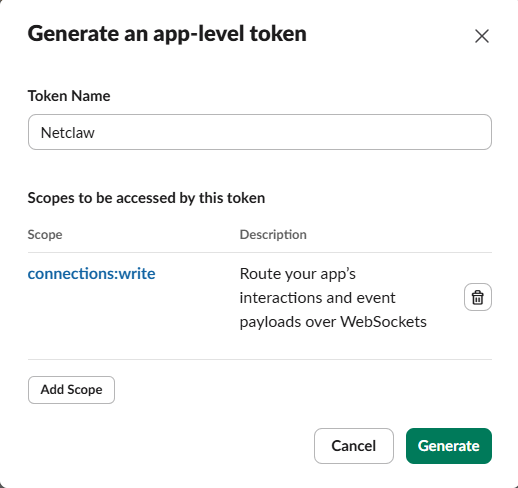
Click Generate and copy the xapp-... token.
- Bot Token — Go to Install App in the sidebar and click Install to {Your Workspace}.
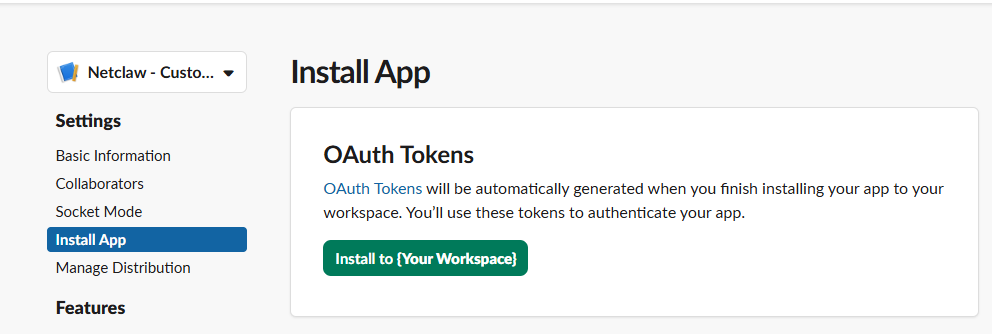
After approving, copy the xoxb-... Bot User OAuth Token from the OAuth & Permissions page.
Then invite the bot to each channel where it should respond: /invite @YourBotName
What the scopes do
Section titled “What the scopes do”| Scope | Why |
|---|---|
app_mentions:read | Receive @-mention events |
channels:history | Read message history in public channels |
channels:read | Resolve channel names to IDs, list public channels |
chat:write | Post messages and replies in threads, plus native loading status |
chat:write.customize | Post with custom display name/avatar |
files:read | Download files shared in conversations |
files:write | Upload files (agent output, attachments) |
groups:history | Read message history in private channels |
groups:read | List private channels the bot is in |
im:history | Read DM history for thread context |
im:read | List DM conversations |
im:write | Open DM conversations for proactive messaging |
mpim:history | Read group DM history |
mpim:read | List group DM conversations |
users:read | Look up users by name or email for lookup_slack_user |
Configure netclaw
Section titled “Configure netclaw”Run netclaw config → Channels, enable Slack, and paste your tokens. Netclaw resolves channel names to IDs and saves everything — no JSON editing required.
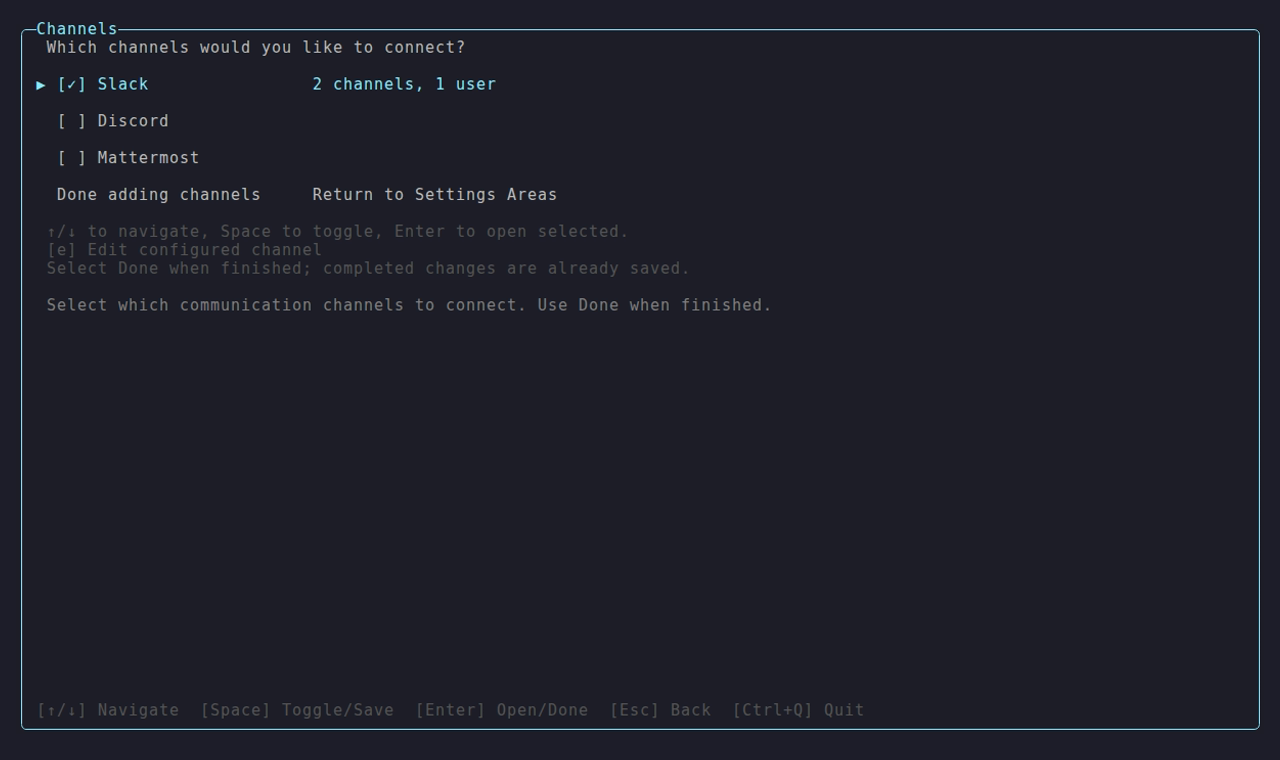
The Channels area — enable an adapter and manage its allow-list; here Slack is connected with 2 channels and 1 user.
Manual configuration
Section titled “Manual configuration”For scripted or headless installs, store tokens with netclaw secrets:
netclaw secrets set Slack.BotToken xoxb-your-bot-tokennetclaw secrets set Slack.AppToken xapp-your-app-tokenThen enable Slack and point it at a channel in ~/.netclaw/config/netclaw.json:
{ "Slack": { "Enabled": true, "DefaultChannelName": "general" }}Environment variables work too:
export NETCLAW_Slack__BotToken="xoxb-..."export NETCLAW_Slack__AppToken="xapp-..."How channel IDs are stored
Section titled “How channel IDs are stored”Enter channel names or IDs (comma-separated) in netclaw config → Channels. Netclaw resolves each entry against the Slack API to its canonical channel ID before saving. The stored AllowedChannelIds field holds IDs, not display names; display names are shown dynamically in the config UI.
Resolution rules:
- Confirmed ID — bot finds the channel by ID: kept as-is.
- Display name — resolves to its channel ID and saved as the ID.
- ID-shaped but not enumerable — kept; a channel ID is the stable ACL key and is never dropped, even if the bot can’t list it right now.
- Unresolvable display name — dropped and flagged with a Warning in the config UI. Re-open
netclaw config→ Channels after inviting the bot to that channel.
DefaultChannelName is Slack-only and is resolved to a channel ID live at daemon startup, so it is unaffected by the ACL matching rules above.
All config fields
Section titled “All config fields”| Field | Type | Default | Description |
|---|---|---|---|
Enabled | bool | false | Turn on Slack |
SocketMode | bool | true | Must be true. Only Socket Mode is supported. |
BotToken | string | — | Bot User OAuth Token (xoxb-...). Store with netclaw secrets set. |
AppToken | string | — | App-Level Token (xapp-...). Required for Socket Mode. Store with netclaw secrets set. |
DefaultChannelName | string | — | Channel name, resolved to an ID at startup |
DefaultChannelId | string | — | Channel ID directly (use instead of name if you prefer) |
MentionOnly | bool | true | Only respond when @-mentioned |
AllowDirectMessages | bool | false | Accept DMs |
MentionRequiredInDm | bool | false | Require @-mention even in DMs |
AllowedChannelIds | string[] | [] | Channel allow-list. Empty + no default = all channels denied |
AllowedUserIds | string[] | [] | User allow-list. Empty = everyone in allowed channels is accepted |
ChannelAudiences | object | {} | Per-channel audience overrides. Keys are channel IDs or "dm". Values: "personal", "team", "public". |
Tokens live in ~/.netclaw/config/secrets.json (encrypted at rest).
Access control
Section titled “Access control”Slack ACL is default-deny. Three settings decide who talks to the bot and where.
Channels
Section titled “Channels”The bot only responds in channels that pass the allow-list:
DefaultChannelNameorDefaultChannelIdallows one channelAllowedChannelIdsallows multiple- If all three are empty, every channel message is denied. This is the number one setup mistake.
{ "Slack": { "DefaultChannelName": "openclaw", "AllowedChannelIds": ["C0123456789", "C9876543210"] }}Finding channel IDs: right-click a channel name in Slack, “View channel details,” scroll to the bottom. Slack’s help article has screenshots.
AllowedUserIds restricts who gets responses:
- Empty (default) — everyone in allowed channels is accepted
- Non-empty — only listed user IDs get responses, everyone else is silently dropped
Finding user IDs: click a user’s profile in Slack, open the three-dot menu, “Copy member ID.” Slack’s help article has screenshots.
Users in AllowedUserIds are treated as TrustedInternal by the security model. Everyone else is UntrustedExternal.
Direct messages
Section titled “Direct messages”DMs are off by default:
{ "Slack": { "AllowDirectMessages": true }}With DMs on, users can just type normally — MentionRequiredInDm defaults to false, so no @-mention needed.
Audience overrides
Section titled “Audience overrides”Audience is resolved per-message: Team for allow-listed channels and allow-listed users; Public for everything else — including unvetted DMs (DMs accepted only because AllowedUserIds is empty). To treat all DMs as Team, set an explicit ChannelAudiences "dm" override. Override with ChannelAudiences:
{ "Slack": { "ChannelAudiences": { "C0123456789": "team", "dm": "personal" } }}The "dm" key is reserved — it matches every direct message rather than a channel ID. A channel-ID entry takes precedence over it. An unrecognized audience value is rejected outright: the message is denied rather than falling back to a default.
Security Model has the full breakdown on how audiences map to tools and permissions.
Behavior in Slack
Section titled “Behavior in Slack”Threads and sessions
Section titled “Threads and sessions”Each Slack thread is its own isolated session, and the bot always replies in-thread. Idle threads are freed from memory after 1 hour; the conversation context clears after 2 hours of inactivity.
On daemon restart, thread history is backfilled so in-progress conversations pick up where they left off.
Mention behavior
Section titled “Mention behavior”MentionOnly: true (the default) means the bot ignores messages that don’t @-mention it. Two exceptions:
- Thread replies — if a thread already has an active session, the bot responds to everything in that thread without needing a mention
- File shares — attached files bypass the mention check entirely, with or without an active thread
Netclaw strips the @-mention before passing text to the LLM.
Message formatting
Section titled “Message formatting”Netclaw converts LLM markdown to Slack Block Kit: headers, code blocks, blockquotes, lists, bold, italic, strikethrough, inline code, links. Everything renders natively in Slack.
Loading status
Section titled “Loading status”While Netclaw is working on a reply, Slack shows the bot’s native thread status as <Bot Name> is thinking.... This uses Slack’s assistant.threads.setStatus API with the existing chat:write scope, so the manifest above does not need assistant:write or the Slack assistant split view.
Tool approval
Section titled “Tool approval”When a tool call needs approval, netclaw posts a Block Kit prompt right in the thread:
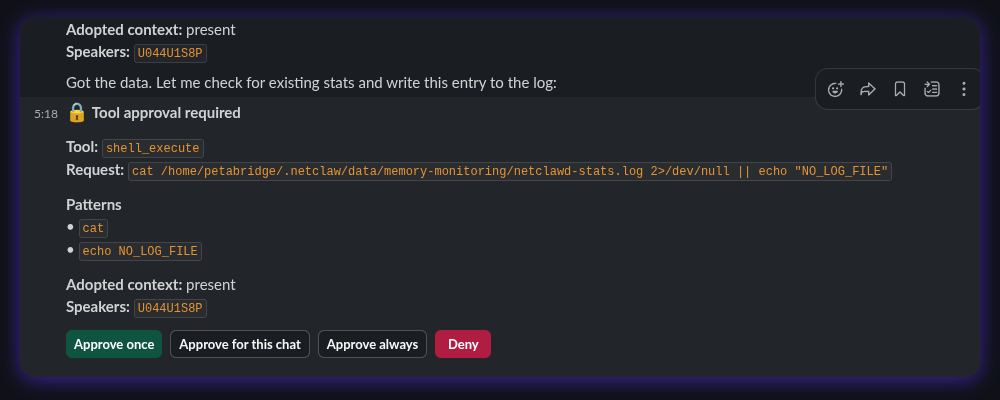
Shows the tool name, the exact command, and the approval buttons. Only the user who triggered the request can approve. System-initiated tool calls (VerifiedAutomation) can be approved by anyone in the thread.
The full prompt offers five choices: Once, This chat, Always here, Always anywhere, and Deny — “Always anywhere” is the broadest grant, so reach for it sparingly. netclaw shows fewer when some don’t apply — a command it can’t cleanly parse (shell control flow, or unbalanced quotes) drops to just Once and Deny. You can reply with the letter shown next to each option instead of clicking.
Proactive messaging
Section titled “Proactive messaging”The LLM can initiate conversations through two built-in tools:
| Tool | What it does |
|---|---|
send_channel_message | Posts a message to a Slack channel or DM using a resolved destination. Pass channel_key="slack" and a destination object (with kind, id) from lookup_slack_user or lookup_channel_destination. Respects ACL. |
lookup_slack_user | Searches users by name, display name, or email. Returns up to 10 matches. Filtered to AllowedUserIds if set. Cached 5 minutes. |
Ignored messages
Section titled “Ignored messages”The bot drops: empty messages (no text, no files), hidden messages, other bots’ messages, its own messages, messages with unsupported subtypes (edits, joins, bot subtype messages), DMs when AllowDirectMessages is off, and un-mentioned channel messages when MentionOnly is on and there’s no active thread.
Verify it works
Section titled “Verify it works”Restart the daemon and check status:
netclaw daemon stop && netclaw daemon startnetclaw statusSlack should show connected. If it doesn’t, run netclaw doctor — it checks token validity and ACL config.
Then @-mention the bot in an allowed channel. If it responds, you’re set.
Troubleshooting
Section titled “Troubleshooting”Common problems and fixes are in Channel Troubleshooting. The hits:
- Connected but silent —
AllowedChannelIdsis empty and no default channel is set, so all traffic gets denied - Works in some channels, not others — channel missing from
AllowedChannelIds, or the bot hasn’t been invited - Socket Mode keeps disconnecting — the
xapp-...App-Level Token may have expired or been revoked
Next steps
Section titled “Next steps”- Configure audiences and approval gates to control what tools are available in each channel
- Set up systemd so the daemon stays running after reboots
- Run
netclaw doctorto verify token health and ACL config
Related pages
Section titled “Related pages”netclaw config— Channelsnetclaw secrets— token managementnetclaw doctor— Slack auth and ACL diagnostics- Security Model — audiences and approval gates
- Channel Troubleshooting — error codes and debug logging
External resources
Section titled “External resources”- Slack API: Socket Mode — how Socket Mode connections work
- Slack API: Bot Token Scopes — scope reference
- Slack: Block Kit — message formatting
- Slack: Finding IDs — channel and user IDs for ACL config
- Slack: Finding User IDs — step-by-step for copying member IDs
 Built by Petabridge