
systemd Service
The netclaw daemon (netclawd) runs as a systemd user service — no sudo, no root, just your own account. One CLI command sets everything up.
Why user-level systemd?
Section titled “Why user-level systemd?”Netclaw is a personal agent. It operates on files in your home directory, signs in to services using your credentials, and connects to tools you’ve authorized. Running the daemon under your own user account matches the privilege envelope it actually needs.
Choosing systemd --user over systemd --system is security-neutral relative to running the daemon directly from your shell. The same files are reachable, the same credentials are accessible, the same network endpoints are in scope. systemd gives you auto-restart on crash, lingering across logout, and journal integration. None of those require elevated privileges.
The contrast that matters is user-level versus system-level. A system-level service would run as root, or force you to provision a dedicated netclaw user. Netclaw’s threat model has no use for either. Root would put a personal agent in the same privilege class as the kernel; a dedicated service user would split your config and credentials across two filesystem owners for no benefit.
For stricter isolation, layer hardening directives onto the unit file: ProtectHome=, NoNewPrivileges=true, seccomp filters. Those add real sandboxing. User-level alone doesn’t claim to.
Before you begin
Section titled “Before you begin”- Linux with systemd 236+ (Ubuntu 20.04+, Debian 11+, Fedora 36+, RHEL 8+, etc.) — check with
systemctl --version dbus-user-sessioninstalled — required forsystemctl --useron headless/minimal servers (e.g.,sudo apt install dbus-user-sessionon Debian/Ubuntu, then re-login)- Netclaw installed — see Installation if you don’t have it yet
- An initialized
~/.netclawdirectory — runnetclaw initfirst - A configured provider and model — see Models
Install the service
Section titled “Install the service”netclaw daemon installThis writes a unit file to ~/.config/systemd/user/netclaw.service, enables it, and runs loginctl enable-linger $USER so the service survives logout.
Start it:
systemctl --user start netclawVerify:
netclaw status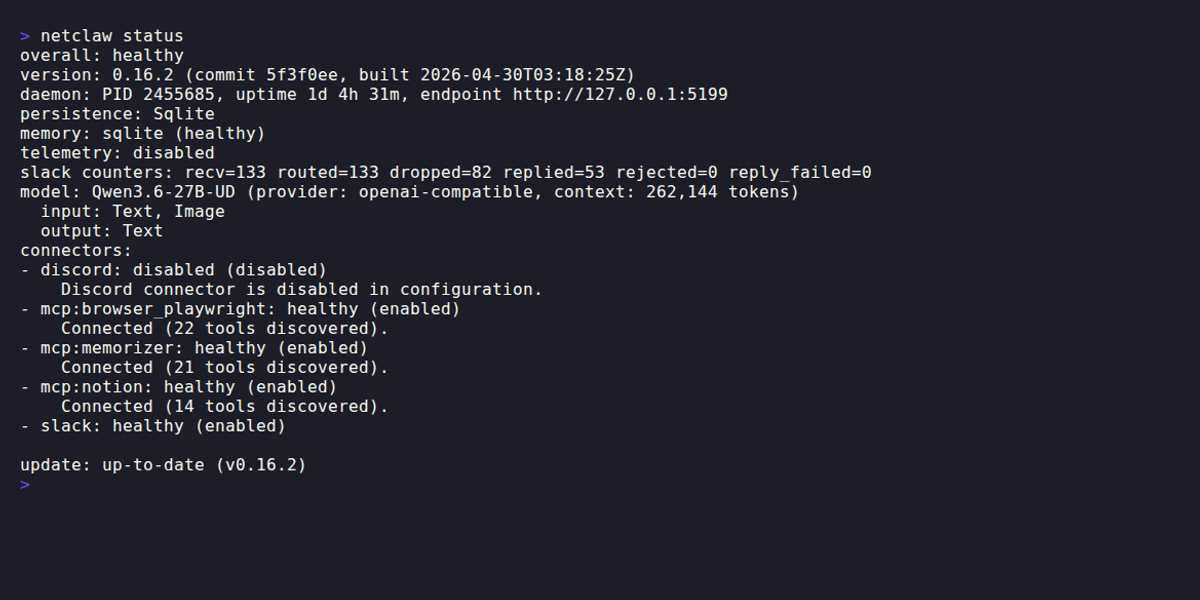
The unit file
Section titled “The unit file”netclaw daemon install generates this at ~/.config/systemd/user/netclaw.service:
[Unit]Description=Netclaw DaemonAfter=network.target
[Service]Type=simpleExecStart=/path/to/netclawdExecStop=/path/to/netclaw daemon stopRestart=alwaysRestartSec=5Environment=DOTNET_ENVIRONMENT=ProductionEnvironment=PATH=/path/to/installdir:/home/you/.local/bin:/usr/local/bin:/usr/bin:/bin:/usr/sbin:/sbin
[Install]WantedBy=default.target
The /path/to/ placeholders are resolved to actual binary locations by netclaw daemon install — the literal string never gets written. ExecStop uses the CLI’s daemon stop command instead of a raw signal, which lets the daemon fire shutdown webhooks and drain active sessions before exiting. After ExecStop completes, systemd sends SIGTERM with a 10-second grace period. If the process is still alive after that, SIGKILL finishes it. In practice the daemon shuts down well within that window.
The Environment=PATH= directive is there because systemd --user services start with a sanitized default PATH that does not include ~/.local/bin or any custom install directory. Without it, the agent’s shell tool can’t resolve netclaw (or other user-installed binaries) when it shells out from inside the daemon. The generated PATH puts your install directory first, then ~/.local/bin, then the standard system path. If you upgrade from a Netclaw version that predates this directive, see the Troubleshooting section below.
Manual installation
Section titled “Manual installation”If you prefer to create the service file yourself, adjust the ExecStart, ExecStop, and PATH entries to point at wherever your binaries and user-bin directory actually live:
mkdir -p ~/.config/systemd/user
cat > ~/.config/systemd/user/netclaw.service << 'EOF'[Unit]Description=Netclaw DaemonAfter=network.target
[Service]Type=simpleExecStart=/path/to/netclawdExecStop=/path/to/netclaw daemon stopRestart=alwaysRestartSec=5Environment=DOTNET_ENVIRONMENT=ProductionEnvironment=PATH=/path/to/installdir:/home/you/.local/bin:/usr/local/bin:/usr/bin:/bin:/usr/sbin:/sbin
[Install]WantedBy=default.targetEOF
systemctl --user daemon-reloadsystemctl --user enable netclaw.serviceloginctl enable-linger $USERsystemctl --user start netclaw
The %h specifier (expands to your home directory) also works in ExecStart/ExecStop paths if you prefer relative-to-home references.
Service management
Section titled “Service management”| Action | Command |
|---|---|
| Start | systemctl --user start netclaw |
| Stop | systemctl --user stop netclaw |
| Restart | systemctl --user restart netclaw |
| Status | systemctl --user status netclaw |
| Logs (journal) | journalctl --user -u netclaw |
| Enable on boot | systemctl --user enable netclaw |
| Disable on boot | systemctl --user disable netclaw |
The CLI commands netclaw daemon start, netclaw daemon stop, and netclaw daemon status also work, regardless of whether systemd is managing the process.
Lingering
Section titled “Lingering”systemd kills user services when you log out. Lingering prevents that by keeping your user slice alive.
# Check if lingering is enabledls /var/lib/systemd/linger/$USER
# Enable it (netclaw daemon install does this automatically)loginctl enable-linger $USER
If your daemon stops every time you disconnect SSH, lingering isn’t enabled.
Configuration
Section titled “Configuration”Config lives at ~/.netclaw/config/netclaw.json. To relocate the base directory, set NETCLAW_HOME — useful when you want data on a separate volume or need to run multiple instances with isolated state. Add it to the [Service] section of the unit file:
[Service]Environment=NETCLAW_HOME=/data/netclawKey paths
Section titled “Key paths”| Path | Contents |
|---|---|
~/.netclaw/config/netclaw.json | Daemon settings |
~/.netclaw/config/secrets.json | Provider API keys and credentials |
~/.netclaw/netclaw.db | SQLite database (sessions, stats) |
~/.netclaw/logs/daemon.log | Rolling log file |
~/.netclaw/netclaw.pid | PID file |
~/.netclaw/netclaw.lock | Singleton lock (OS-backed exclusive lock) |
Network binding
Section titled “Network binding”Default binding is 127.0.0.1:5199, loopback only.
{ "Daemon": { "Host": "127.0.0.1", "Port": 5199 }}To bind a different address or port via environment variables, add them to the unit file:
[Service]Environment=NETCLAW_Daemon__Host=127.0.0.1Environment=NETCLAW_Daemon__Port=5200Then reload and restart:
systemctl --user daemon-reloadsystemctl --user restart netclawFor remote access via Tailscale or Cloudflare Tunnel, see Exposure Modes.
Config reload
Section titled “Config reload”A file watcher on netclaw.json picks up changes and triggers a graceful drain-and-restart automatically. One exception: Daemon.Host, Daemon.Port, and Daemon.ExposureMode require a manual systemctl --user restart netclaw — the file watcher ignores these fields because changing the listener binding mid-flight isn’t safe.
Health checks
Section titled “Health checks”The daemon exposes two HTTP endpoints:
| Endpoint | Auth | Purpose |
|---|---|---|
GET /api/health/ready | None | Returns 200 OK when the daemon is ready |
GET /api/health/status | Required | Detailed runtime status |
Smoke test:
curl -sf http://127.0.0.1:5199/api/health/ready && echo "OK"To block systemd from reporting the service as “started” until the daemon is actually ready, add an ExecStartPost readiness gate to your [Service] section. This delays dependent services until netclaw is genuinely accepting connections:
ExecStartPost=/bin/sh -c 'until curl -sf http://127.0.0.1:5199/api/health/ready; do sleep 2; done'For richer metrics and log export, see OpenTelemetry.
Logging
Section titled “Logging”Logs go to ~/.netclaw/logs/daemon.log as a rolling file — journalctl --user -u netclaw captures stdout/stderr from the process, but the structured application logs live in the file. Change the log level via Logging:LogLevel:Default in netclaw.json:
{ "Logging": { "LogLevel": { "Default": "Information" } }}Valid levels: Trace, Debug, Information, Warning, Error, Critical.
Follow the log in real time:
tail -f ~/.netclaw/logs/daemon.logUpgrading
Section titled “Upgrading”Schema migrations are forward-only with no automatic rollback, so back up before upgrading.
Model configuration is the one exception. On 0.25.0, the first model write converts Models to named definitions and roles and keeps a restorable snapshot — see Migrating model configuration, especially if your unit sets models through NETCLAW_Models__* variables.
Unlike the Docker deployment, bare-metal installs can self-update — the daemon periodically checks for new releases and applies them. After an update, the process exits and systemd’s Restart=always brings it back on the new version. For manual upgrades:
# 1. Stop the daemonsystemctl --user stop netclaw
# 2. Back up the databasecp ~/.netclaw/netclaw.db ~/.netclaw/netclaw.db.bak.$(date +%s)
# 3. Replace binaries (method depends on how you installed)#    For manual installs, download and extract the new release.#    For package manager installs, update the package.
# 4. Start the daemonsystemctl --user start netclaw
# 5. Verifyuntil curl -sf http://127.0.0.1:5199/api/health/ready; do sleep 2; doneecho "Daemon is ready"
To rollback: stop the daemon, restore the database backup, put the old binaries back, and start again.
Uninstalling
Section titled “Uninstalling”netclaw daemon uninstallYour data in ~/.netclaw stays untouched.
To remove manually:
systemctl --user stop netclawsystemctl --user disable netclawrm ~/.config/systemd/user/netclaw.servicesystemctl --user daemon-reloadTroubleshooting
Section titled “Troubleshooting”Start here: netclaw doctor
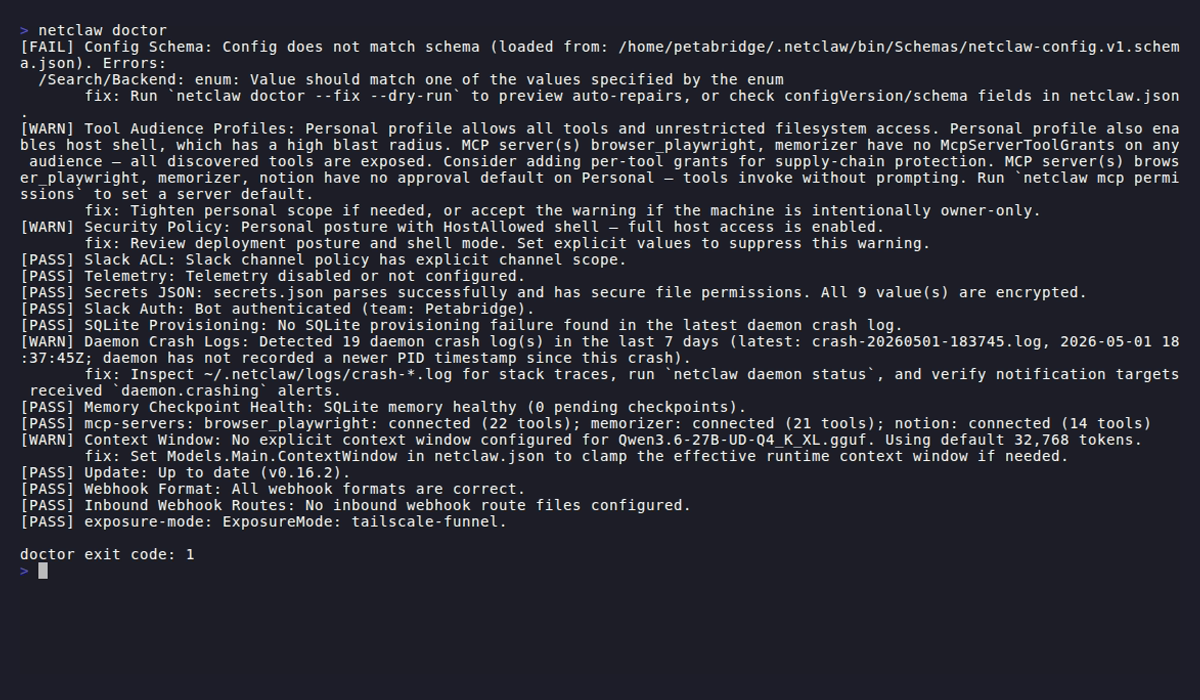
Section titled “Start here: netclaw doctor”Before diving into specific symptoms, run netclaw doctor. It checks provider connectivity, config validity, daemon health, and common misconfigurations in one pass.
Daemon stops after SSH disconnect
Section titled “Daemon stops after SSH disconnect”Lingering isn’t enabled. Fix it with loginctl enable-linger $USER and verify with ls /var/lib/systemd/linger/.
”Failed to connect to bus” when running systemctl
Section titled “”Failed to connect to bus” when running systemctl”XDG_RUNTIME_DIR isn’t set. Common when running systemctl --user from cron or a non-login shell. On headless servers, also make sure dbus-user-session is installed (sudo apt install dbus-user-session). Export the runtime dir manually:
export XDG_RUNTIME_DIR=/run/user/$(id -u)systemctl --user status netclawService starts but CLI can’t connect
Section titled “Service starts but CLI can’t connect”Check that the daemon is actually listening:
ss -tlnp | grep 5199If nothing shows, check the daemon log:
tail -20 ~/.netclaw/logs/daemon.logCommon causes: port conflict (another process on 5199), JSON syntax error in netclaw.json, or missing provider configuration.
”Daemon already running” when starting
Section titled “”Daemon already running” when starting”The lock file at ~/.netclaw/netclaw.lock is held by another process — either a daemon is already running or a previous instance didn’t exit cleanly. Check for it:
pgrep -a netclawdIf nothing shows, the lock file is stale. Remove it and restart:
systemctl --user stop netclawrm ~/.netclaw/netclaw.locksystemctl --user start netclawShell tool can’t find netclaw (or other user-installed binaries)
Section titled “Shell tool can’t find netclaw (or other user-installed binaries)”If your agent reports command not found when shelling out to netclaw stats, gh, or any other binary in ~/.local/bin, the systemd unit’s PATH is missing the directory where those binaries live. This was the default before the Environment=PATH= directive was baked into the install template, so older units don’t have it at all.
Run netclaw doctor to confirm — the Systemd Unit PATH check will report a Warning if the unit lacks a PATH directive or doesn’t include the daemon’s install directory.
Refresh the unit file:
netclaw daemon uninstallnetclaw daemon installsystemctl --user restart netclawVerify the daemon picked up the new PATH:
cat /proc/$(pgrep -u "$USER" netclawd)/environ | tr '\0' '\n' | grep PATHService fails on older systemd versions
Section titled “Service fails on older systemd versions”User-level services require systemd 236+. Check with systemctl --version. On older systems, skip systemd and run netclaw daemon start directly — it detaches as a background process.
Related pages
Section titled “Related pages”- Docker Deployment — containerized alternative
- Exposure Modes — remote access via Tailscale or Cloudflare Tunnel
- Models — model slot configuration
- OpenTelemetry — metrics and log export
netclaw doctor— built-in health check diagnostics
Resources
Section titled “Resources”- systemd user services documentation — full unit file reference
- systemd user services on ArchWiki — best practical guide for user-level systemd
- loginctl enable-linger — why lingering matters for headless services
- .NET environment variable configuration — the double-underscore nesting convention used by
NETCLAW_env vars
 Built by Petabridge