
External Skills
External skills let netclaw read skill directories owned by other AI tools — Claude Code, Open Code, or any arbitrary directory on disk. Point netclaw at an existing directory and it scans those skills alongside its own. No copying required.
Skills must follow the SKILL.md format (frontmatter with name and description fields, markdown body). See Skills Overview for details on the format and lifecycle.
Quick Start
Section titled “Quick Start”To add Claude Code’s skills, use the CLI:
netclaw skill source add claude-code --well-known claude-codeThat’s it. The daemon picks up the change via its file watcher — no restart needed.
Alternatively, run netclaw config → Skill Sources, then choose Add a local skill folder to browse and select a directory manually.
Before You Begin
Section titled “Before You Begin”- Netclaw is installed and initialized (or you’re comfortable editing
netclaw.jsondirectly — it lives at~/.netclaw/config/netclaw.jsonby default) - The external directory you want to add exists on disk (netclaw logs a warning for missing paths but still configures the source)
Well-Known Sources
Section titled “Well-Known Sources”Well-known aliases expand to standard paths:
| Alias | Resolves to |
|---|---|
claude-code | ~/.claude/skills/, ~/.claude/commands/, plus marketplace paths discovered dynamically (~/.claude/plugins/marketplaces/*/skills/) |
open-code | ~/.open-code/skills/ |
The claude-code alias scans marketplace plugin directories alphabetically for stable precedence. Marketplace paths are discovered at runtime — if you install a new plugin, it gets picked up on the next scan. Missing one of those paths is fine — the alias resolves whichever ones exist.
Configuration
Section titled “Configuration”External sources live under ExternalSkills.Sources in netclaw.json:
{ "ExternalSkills": { "Sources": [ { "Name": "claude-code", "WellKnown": "claude-code", "Enabled": true, "AllowSymlinks": true }, { "Name": "team-skills", "Path": "/opt/skills/shared", "Enabled": true, "AllowSymlinks": true } ] }}Source fields
Section titled “Source fields”| Field | Type | Default | Description |
|---|---|---|---|
Name | string | — | Unique identifier for this source |
Path | string | null | Absolute path to a skill directory (mutually exclusive with WellKnown) |
WellKnown | string | null | Well-known alias (mutually exclusive with Path) |
Enabled | bool | true | Whether the source is active |
AllowSymlinks | bool | false | Follow symlinks within the directory. Any well-known alias defaults to true when added via CLI (--well-known). |
Each source must set either Path or WellKnown, not both.
Managing Sources via CLI
Section titled “Managing Sources via CLI”Add and remove sources without editing netclaw.json:
# List configured sourcesnetclaw skill source list
# Add a well-known sourcenetclaw skill source add claude-code --well-known claude-code
# Add a custom pathnetclaw skill source add team-skills --path /opt/skills/shared
# Disable a source without removing itnetclaw skill source disable team-skills
# Re-enablenetclaw skill source enable team-skills
# Remove entirelynetclaw skill source remove team-skills
All netclaw skill source commands work without the daemon running. CLI changes are picked up by a running daemon automatically via its file watcher.
Adding Sources via the Config Menu
Section titled “Adding Sources via the Config Menu”netclaw config → Skill Sources presents two options: + Add local folder and + Add skill server.
Local folders are selected via a directory picker (Ctrl+N to create a new folder). After selection, you choose whether to allow symlinks in that folder, then confirm the source name. The source gets added and autosaved immediately.
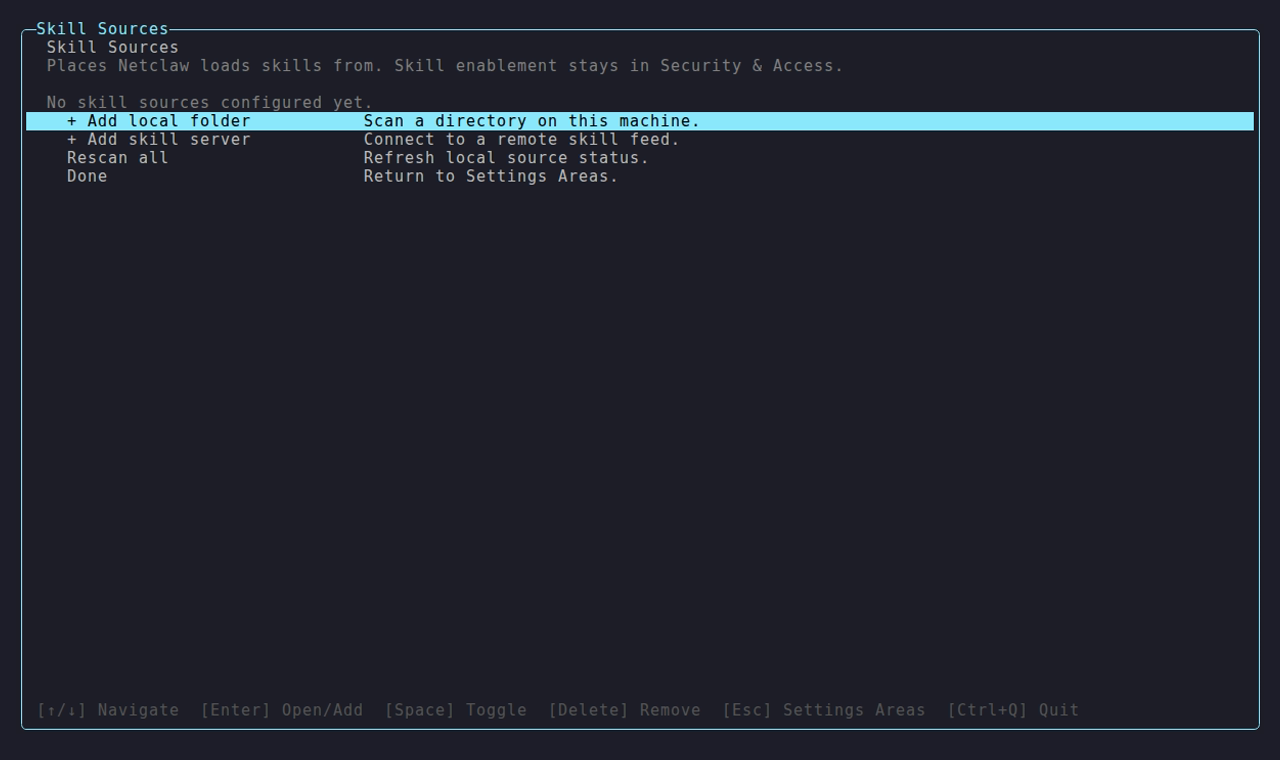
The Skill Sources screen — + Add local folder opens a directory picker; + Add skill server connects a remote feed.
Leave symlinks off unless your setup requires it (shared filesystems, monorepo layouts with linked skill directories).
Precedence
Section titled “Precedence”When multiple sources define a skill with the same name:
native skills > server feeds > external sourcesNative skills are skills authored directly through netclaw’s agent. Server feeds are remotely-synced skill repositories. External sources always have lowest priority.
Within external sources, order in the Sources array determines which wins — higher-priority sources go first. Collisions are logged; run netclaw skill issues to see them.
Runtime Behavior
Section titled “Runtime Behavior”The daemon watches every resolved external path for changes. When a *.md file changes, it rescans after a 500ms debounce — so multiple rapid writes only trigger one rescan. Drop a new skill file into an external directory and it’s available on the next agent turn. No restart needed.
The daemon logs a warning for missing directories at startup but keeps running.
Security
Section titled “Security”All well-known sources have AllowSymlinks: true set automatically when added via CLI — their standard paths often include symlinked directories. Custom sources default to AllowSymlinks: false — opt in per source if you trust the targets.
External skills loaded from disk go through:
- Frontmatter validation —
nameanddescriptionare required; malformed YAML is rejected - Symlink/path safety — blocked unless
AllowSymlinks: truefor that source - Tool access policies — same restrictions as native skills; the
allowed-toolsfrontmatter field is informational only and doesn’t grant tool access
External skills are scanned for prompt injection at load time, the same as every other skill - skill_load always scans before returning content. They skip only the write-time scan that runs when you create or edit a skill through netclaw, since you author these files yourself in another tool.
Validating External Skills
Section titled “Validating External Skills”Validate skills before loading them:
# Validate a single skillnetclaw skill validate /opt/skills/shared/deploy/SKILL.md
# See all scanning/validation issues across all sourcesnetclaw skill issues
Troubleshooting
Section titled “Troubleshooting”Source shows 0 skills after adding
Section titled “Source shows 0 skills after adding”The path doesn’t contain valid *.md files with SKILL.md frontmatter. Run netclaw skill validate <path> on a file to see what’s wrong. Common causes: missing name or description in frontmatter, or the directory has subdirectories but no top-level markdown files.
”Symlink blocked” warnings in logs
Section titled “”Symlink blocked” warnings in logs”The source has AllowSymlinks: false and the directory contains symlinks. Either restructure the directory or set AllowSymlinks: true if you trust where the links point.
Skills not updating after file changes
Section titled “Skills not updating after file changes”Filesystem events are debounced by 500ms. If changes still aren’t showing up, check that the daemon is running (netclaw status) and the source is enabled (netclaw skill source list).
What to Read Next
Section titled “What to Read Next”- Skills Overview — skill format, source types, and the full lifecycle
- Skill Feeds — server-synced skill repositories
netclaw skill— full CLI reference for skill management
Resources
Section titled “Resources”- AgentSkills.io — the SKILL.md format specification
- Claude Code documentation — Claude Code setup and commands reference
- FileSystemWatcher docs — the .NET file watching API netclaw uses
 Built by Petabridge