
netclaw mcp
Manage Model Context Protocol servers and control which tools each audience can access. Run netclaw mcp permissions for an interactive TUI, or use subcommands to script server setup.
Netclaw has three audiences — Personal, Team, and Public — each with independent tool grants and approval policies. New servers are fail-closed: all tools are blocked for every audience until you grant them.
netclaw mcp permissions # launch permissions TUInetclaw mcp <subcommand> [options] # CLI modePermissions TUI
Section titled “Permissions TUI”netclaw mcp permissionsRequires a running daemon (netclaw run or netclaw daemon start).
Server list
Section titled “Server list”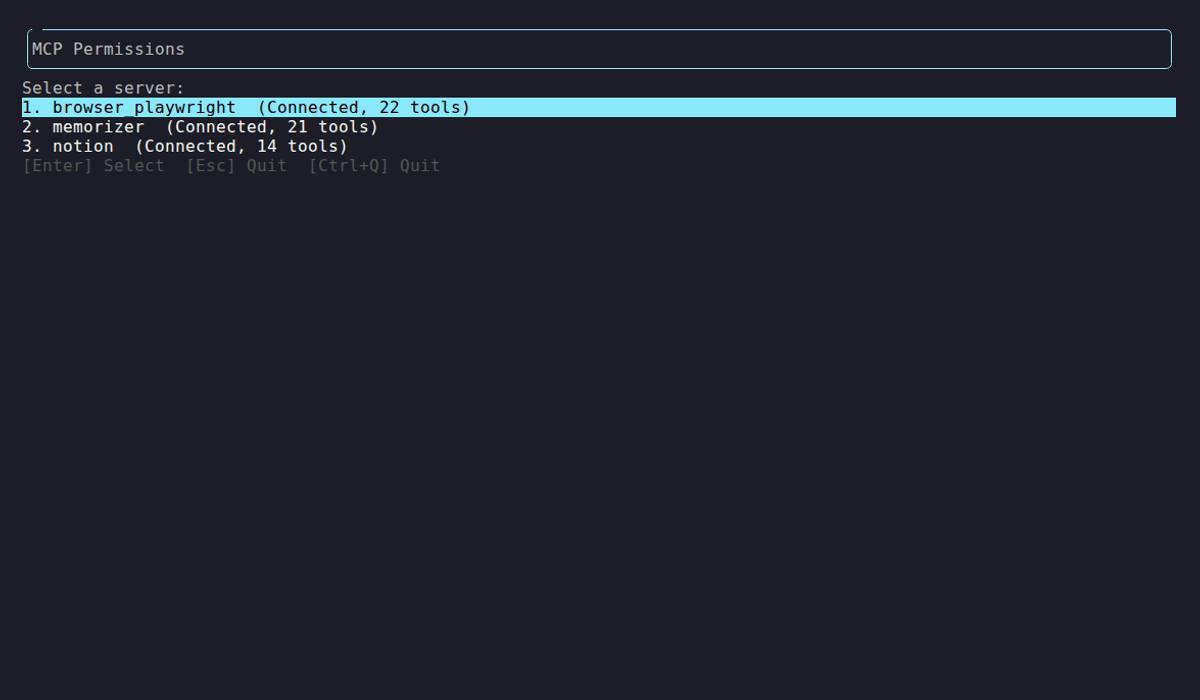
The TUI probes each configured server and shows connection status and tool count. Select a server to manage its tool grants.
Tool grid
Section titled “Tool grid”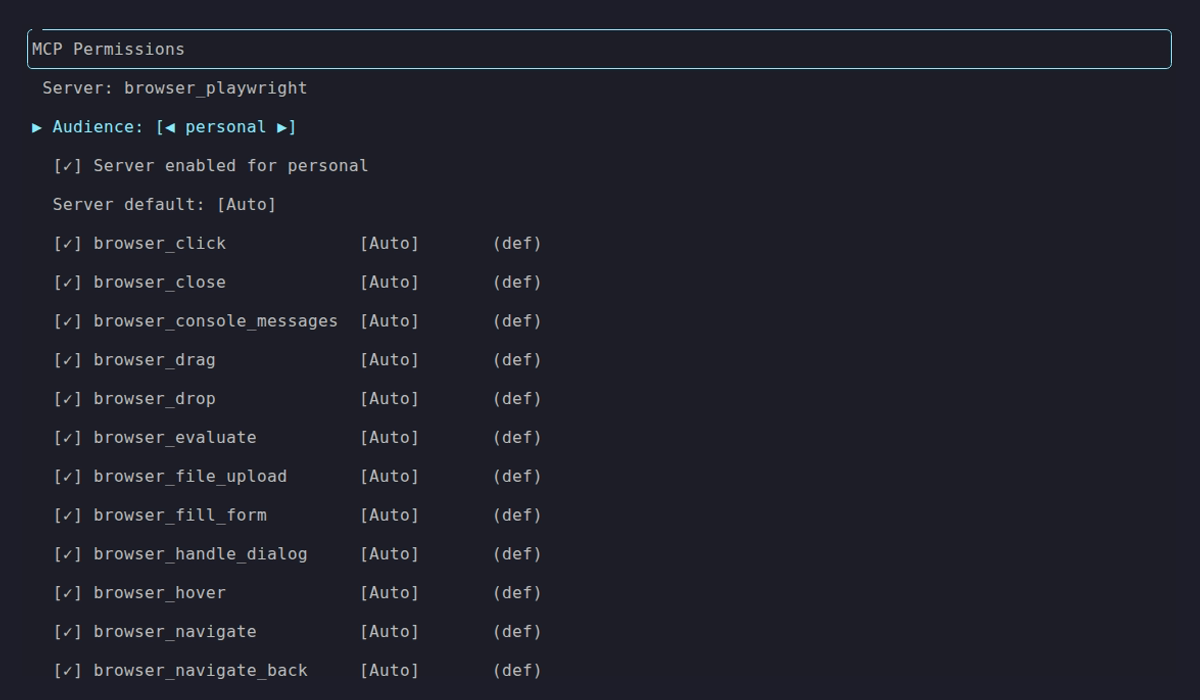
The Personal audience with all tools granted and Auto approval. Each row is a discovered tool — [✓] means granted, [ ] means blocked. The approval column shows whether the tool runs automatically (Auto), requires user confirmation (Approval), or is hard-blocked (Deny).
Switch audiences with ←/→ on the Audience row. The same server can have completely different permissions per audience:
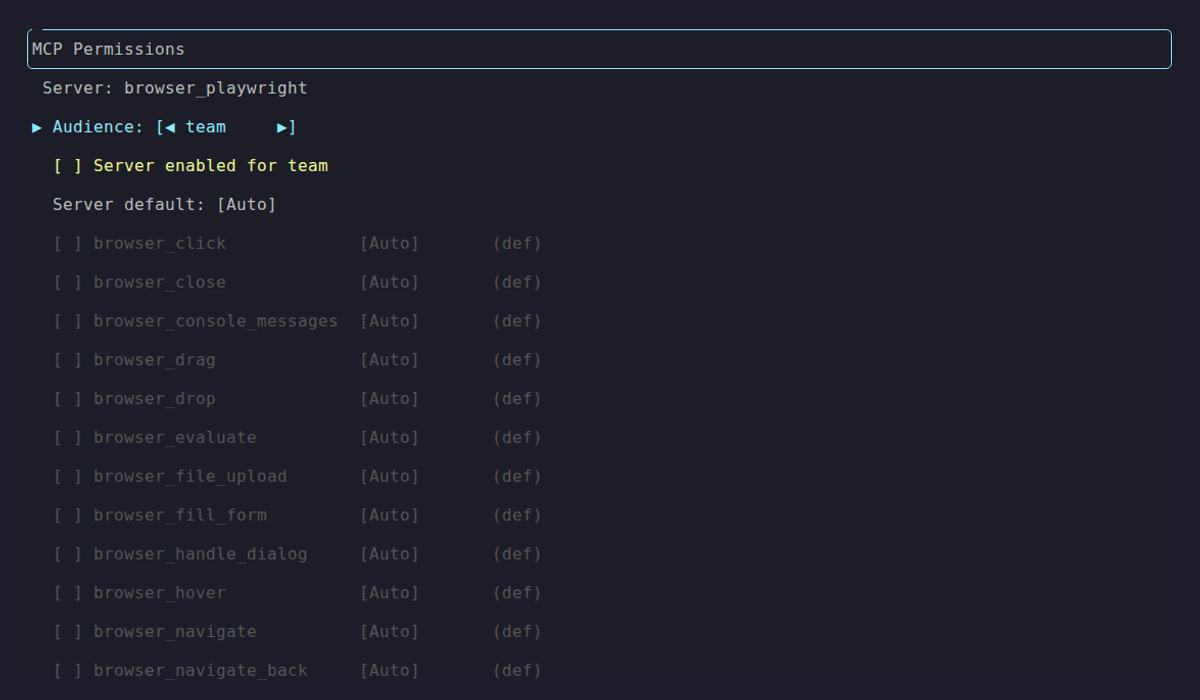
Team audience — server not enabled, no tools granted. This is the default for new servers.
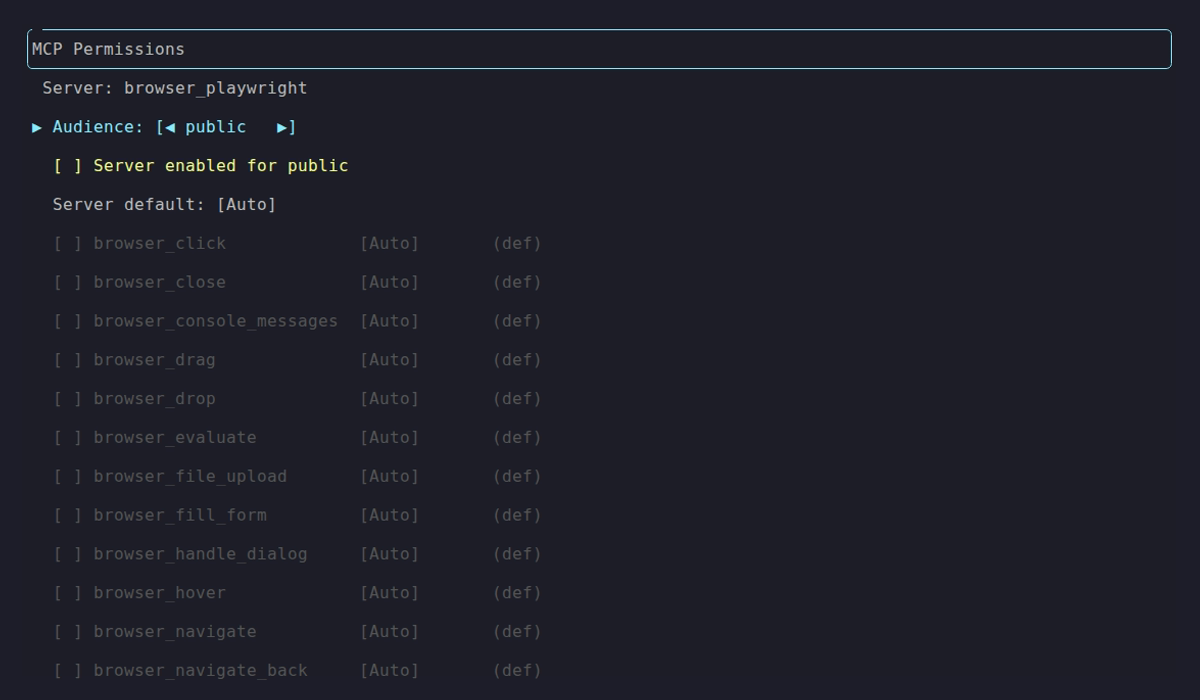
Public audience — same default lockdown.
Keybindings
Section titled “Keybindings”| Key | Action |
|---|---|
↑ / ↓ | Navigate rows |
← / → | Change audience or cycle approval mode |
Space | Toggle tool grant on/off |
A | Toggle all tools on/off |
E | Toggle server enabled for current audience |
M | Cycle server default approval mode |
P | Cycle per-tool approval override |
Enter | Done (prompts to save if there are unsaved changes) |
Esc | Back to server list (quits from server list) |
Ctrl+Q | Quit (discards unsaved changes) |
Changes are saved to ~/.netclaw/config/netclaw.json. Restart the daemon to apply.
Subcommands
Section titled “Subcommands”mcp add
Section titled “mcp add”# stdio transport (default)netclaw mcp add <name> [command] [-- args...]
# HTTP or SSE transportnetclaw mcp add <name> <url> --transport http| Flag | Description | Default |
|---|---|---|
--transport, -t | stdio, http, or sse | stdio |
--env KEY=VALUE | Environment variable (repeatable) | — |
--header "Key: Value" | HTTP header (repeatable) | — |
--client-id <id> | OAuth client ID for HTTP/SSE servers | — |
--scope <scopes> | OAuth scopes (space-separated) | — |
--grant-all | Skip per-tool grants (all tools visible), but still write approval defaults | — |
Server config goes to ~/.netclaw/config/netclaw.json. Credentials (--env values, --header values) go to secrets.json.
After adding a server, all tool grants are empty and the approval default is Approval for Personal and Team, Deny for Public. Restart the daemon to load the new server, then grant tools:
Next: run netclaw mcp permissions to grant tools and adjust approvals for 'notion'.The server name you provide here is what appears as mcp:<name> in netclaw status output.
Examples
Section titled “Examples”# Add a stdio MCP servernetclaw mcp add memorizer npx -y @anthropic/memorizer-mcp
# Add an HTTP server with OAuthnetclaw mcp add notion https://mcp.notion.com --transport http \ --client-id abc123 --scope "read write"
# Add a server with environment variablesnetclaw mcp add my-server npx my-mcp-server \ --env API_KEY=sk-123 --env REGION=us-east-1
# CI/scripting — skip per-tool grant setupnetclaw mcp add my-server npx my-mcp-server --grant-allmcp list
Section titled “mcp list”netclaw mcp listName Transport Enabled Statusbrowser_playwright stdio yes connected (22 tools)memorizer stdio yes connected (21 tools)notion http yes awaiting auth — run: netclaw mcp auth notionShows static config plus live status from the daemon. Without a running daemon, all statuses show as unavailable.
| Status | Meaning |
|---|---|
connected (N tools) | Server is up, N tools discovered |
awaiting auth | OAuth required — run netclaw mcp auth <name> |
auth failed | OAuth token expired or invalid |
unreachable | Server process crashed or network error — run netclaw doctor to diagnose |
disabled | Disabled via netclaw mcp disable |
mcp get
Section titled “mcp get”netclaw mcp get <name>Shows full server config: transport, command/URL, enabled state, OAuth settings, and environment variables. Credential values are redacted (***REDACTED***).
mcp remove
Section titled “mcp remove”netclaw mcp remove <name>Removes the server from both netclaw.json and secrets.json. Tool grant and approval policy entries for this server are not cleaned up automatically — if you re-add a server with the same name, old permission settings will still apply.
mcp enable / mcp disable
Section titled “mcp enable / mcp disable”netclaw mcp enable <name>netclaw mcp disable <name>Toggle a server without removing its config. Disabled servers aren’t loaded by the daemon — their tools won’t appear in netclaw mcp permissions or be available in sessions.
mcp auth
Section titled “mcp auth”netclaw mcp auth <name>Starts the OAuth flow for an HTTP or SSE server. Opens your browser to the authorization page and prints the URL to the terminal. In headless environments, copy the printed URL manually. Times out after 5 minutes.
Only needed for HTTP and SSE servers that require OAuth.
mcp tools
Section titled “mcp tools”netclaw mcp tools <server> [--audience <name>] [--snapshot] [--grant <tools>] [--revoke <tools>]View and script tool grants from the CLI. For interactive editing, use netclaw mcp permissions.
| Flag | Description |
|---|---|
--audience <name> | Filter to personal, team, or public |
--snapshot | Populate grants from currently discovered tools (requires daemon) |
--grant <tools> | Comma-separated tool names to grant (requires --audience) |
--revoke <tools> | Comma-separated tool names to revoke (requires --audience) |
Without --grant/--revoke, displays a table: ✓ = granted, - = blocked, ✱ = no per-tool filtering (all tools pass through).
# See what's granted for teamnetclaw mcp tools memorizer --audience team
# Grant specific tools for personal usenetclaw mcp tools browser_playwright --audience personal \  --grant "browser_navigate,browser_click"
# Snapshot all discovered tools into the grants confignetclaw mcp tools memorizer --snapshot
How permissions work
Section titled “How permissions work”Tool grants control which tools are visible to each audience. An ungranted tool doesn’t exist from the model’s perspective — configure grants with netclaw mcp permissions or netclaw mcp tools.
Approval policy controls whether granted tools run automatically or need human confirmation:
| Mode | Behavior |
|---|---|
Auto | Tool runs without asking |
Approval | Prompts for confirmation before executing |
Deny | Hard-blocked even if granted |
Approval overrides are per-tool: you can set the server default to Auto but require Approval for destructive tools like delete or drop_table.
Default policies for new servers:
| Audience | Tool Grants | Approval Default |
|---|---|---|
| Personal | Empty (all blocked) | Approval |
| Team | Empty (all blocked) | Approval |
| Public | Empty (all blocked) | Deny |
Examples
Section titled “Examples”# Full setup: add a server, grant tools, configure approvalsnetclaw mcp add notion https://mcp.notion.com --transport httpnetclaw mcp permissions # grant tools in the TUI
# Check what's connectednetclaw mcp list
# Temporarily disable a servernetclaw mcp disable notion
# Re-enable itnetclaw mcp enable notion
# Remove a server you no longer neednetclaw mcp remove old-serverWhat’s next
Section titled “What’s next”After adding a server and granting permissions, restart the daemon and run netclaw status to confirm the MCP connector shows healthy. If a server reports unreachable or auth failed, run netclaw doctor to diagnose.
Related commands
Section titled “Related commands”netclaw init— adds browser automation MCP servers during onboardingnetclaw status— shows MCP server connectivity at runtimenetclaw doctor— diagnoses MCP server connection issuesnetclaw secrets— manage encrypted credentials used by MCP servers
Resources
Section titled “Resources”- Model Context Protocol specification — the protocol netclaw implements for tool servers
- MCP server registry — community-maintained list of MCP servers
- Notion MCP server — Notion’s official MCP integration
- MCP TypeScript SDK — build your own MCP server
 Built by Petabridge